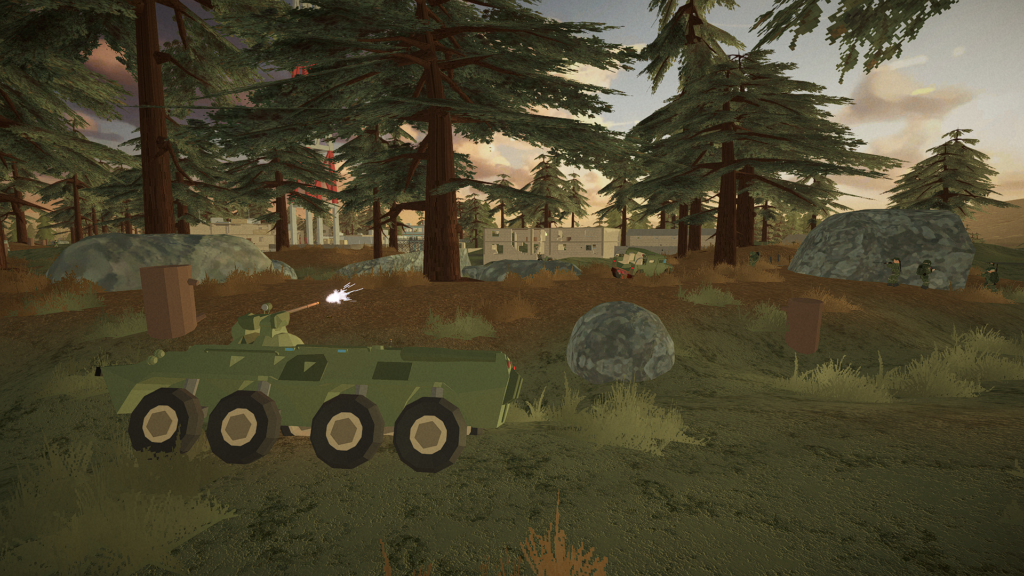
While controllers are technically compatible and with BattleBit Remastered on PC, getting them to work properly isn’t easy. If you’re one of the many players looking for a way to enable controllers in the fastest growing massively online FPS on Steam, then we’ve got a few pointers you’ll want to use. This method should get any controller working — but we’re going to especially focus on the Nintendo Switch Pro, Xbox One / Series X and Playstation 4 / 5 controllers. Yes, you can even use Joy-Cons if you really want to.
More BattleBit Remastered guides:
21 Useful Keybinds | How To Earn More XP | All Weapons & Gadget Unlocks | Recon Class Guide | Medic Class Guide | System Requirements
How To Use A Controller
No matter what controller you’re using, the setup should be roughly the same. Follow these steps to get started — then tweak to get the results you want. Simply plugging a controller in and using it is impossible currently for BattleBit without extensive extra work. You’ll need to use Steam Controller Configuration and community customization to get the best possible results.
- Plug your controller into the PC. The controller will light up. Official controllers (Xbox / PS5) will light up blue to indicate the controller is recognized by Steam.
- Go to Steam -> Settings -> External Gamepad Settings and toggle to the connected controller. This should happen automatically. If it doesn’t, do it manually.
NOTE: The back pedals for Xbox Elite Controllers may not appear naturally on the Steam Config. Try downloading Microsoft controller drivers here.
- Next, go to the BattleBit Remastered main menu. Access the settings (cog wheel above broadcast) and Manage -> Controller.
- Set your controller here and manage the button layout. You can edit layout — but that’s difficult. You’re better off using a community layout.
- In Settings -> Manage -> Controller, access Layouts. Select your current Layout then go to Community Layouts.
- If Community Layouts aren’t appeared, select “Show All Layouts” at the bottom of the menu. Search for a Community Layout for your specific controller.
- After choosing a layout, select Apply Layout.
Don’t forget to change these basic layouts — turning on toggles will improve your gamepad experience. You can also change important settings like Sensitivity or Dead Zone.
- To improve play with a controller, change these settings.
- Sprint: Toggle ON
- Aim: Toggle ON
- Lean: Toggle ON
- Set your default reload. (Tactical / Retention)
- Set how to reload. (Hold button or double-tap for Tactical / Retention reload.)
There are many, many community layouts to test out. You can also try third-party tools to help enable controller support. Both of these cost money — and BattleBit will eventually include full controller support in later updates. Until then, only use these programs as a last resort.
- Third-Party Tools:
- https://www.rewasd.com/
- https://xpadder.com/
These programs can be used to enable controller support on other games — so even when BattleBit updates, these programs might serve a purpose for you.