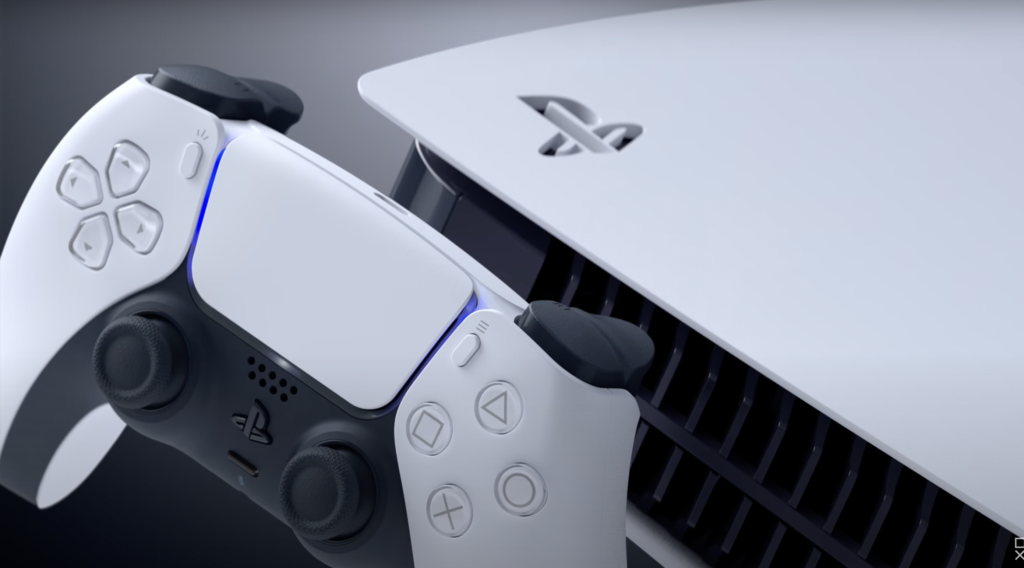
While there are plenty of aspects about the PS5 to love from the DualSense controller to the unique design of the console itself, there’s one area where the PS5 is almost inarguably lacking: internal storage. The console only sports 825GB of storage, which pairs down to roughly 667GB for games, save data, and the like after subtracting the required system information.
Given how big games are to store nowadays paired with the fact that they seem to only be getting bigger, PS5 owners are looking for ways to expand their storage. While it’s pretty simple to set up an external drive with a PS5, finding a convenient place for an additional drive can be a little tricky. Luckily, the PS5 is fitted to accept M.2 SSDs that can hold additional storage. Here’s everything you need to know about installing an internal SSD to your PS5.
How to Install an Internal SSD to Your PS5
Before you begin installing an additional internal drive to your PS5, it’s important to make sure that your SSD has the proper specs. In order to make sure your SSD is compatible with a PS5, check it with the specs listed on the official PlayStation website, linked here. Once you’ve made sure that your M.2 drive will work, turn your PS5 off, unplug all cables from it, and place it upside down on a clean table so that the PlayStation logo is facing down and the rear connection ports are facing your body.
Remove the plate that’s facing up by slightly pulling the bottom right corner (the one that’s parallel to the power adaptor port) to the left. The plate should slide off with little effort. Remove the plate and place it to the side. On the far side of the now-open PS5, you’ll find a metal plate facing upwards that’s connected to the body of the PS5 by a single screw that’s next to the system’s fan. Remove the screw with a screwdriver and set both the plate and the screw aside.
Underneath the plate, you’ll find a green plate with five screw holes marked “110,” “80,” “60,” “42,” and “30” from right to left. Remove the screw that’s in the “110” slot and take the separator that’s being held down by it. Put the separator in the space that marks the size of your M.2 SSD. Grab your drive and then slot it into the receptor on the edge of the green plate area. Once it’s in, make sure to place it flush with the green plate with the separator underneath its far edge. Grab the screw that was originally holding the separator and fasten it back into it so that it now holds the SSD snuggly in place.
Take the metal plate that was initially covering the SSD area and reattach it using the screw that was keeping it in place. Then, reattach the white PS5 faceplate by sliding it into position, essentially doing the reverse of what you needed to do to take it off. With the cover back on, the M.2 SSD will have been installed and you’ll be able to start storing things on it. When you start up your PS5 for the first time after the installation, you’ll be prompted to format the drive to get it ready to go. Take note that when the drive is formatted, all of the information that was on it previously will be wiped.