Table of Contents[Hide][Show]
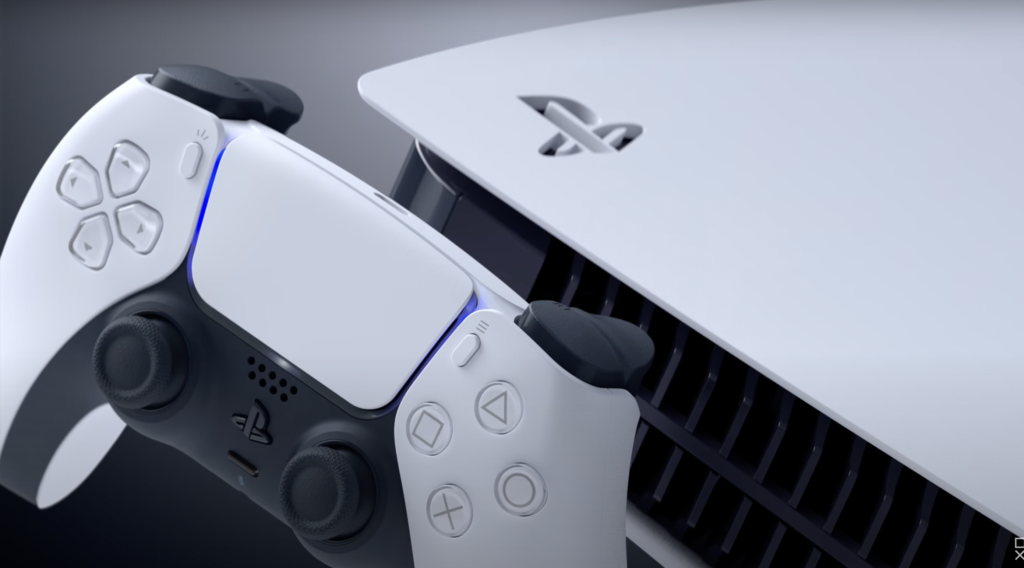
There’s a lot to love about the PS5. From its spectacular library of titles to its revolutionary DualSense controller, it’s a significant milestone for showing just how far video games have come over the last few decades. That said, there’s one area where the PS5 is definitely lacking: its internal storage space.
The PS5 only has 825GB of storage which actually equates to roughly 667GB available to players after the necessary system information is accounted for. While 667GB is decent in terms of storage space, it isn’t able to hold all that many games, especially given how big the game files for certain titles like Call of Duty Warzone 2 can be.
Luckily, there’s a way to expand your storage with an external hard drive. If you’re looking to store even more games than you would be able to with the PS5’s storage, use an external drive. Here’s everything you need to know about setting up an external hard drive for storing PS5 games.
Formatting Your External Drive
In order to use an external drive with your PS5, you’ll need to format it properly. Take note that formatting a drive deletes all of the files that are on it pre-formatting, so make sure to copy any desired files somewhere else before you begin this process otherwise they’ll be lost forever. Once you have an external drive and are ready to format it, plug your drive into one of the USB ports on the PS5.
For the transferring process, it’s best to use one of the USB ports that are on the back of the PS5 as opposed to the one on the front due to the fact that the ones on the back have faster data transfer speeds. That said, the front one will still work, it’ll just be slower.
Once you’ve hooked up the drive, turn on your PS5 and head into the settings menu. Scroll down to “Storage” and then select the “USB Extended Storage” tab. Select “Format as Extended USB Storage” and the drive will format for the PS5. Depending on how big your external drive is, the formatting process may take several minutes. Once it’s done, you’ll be ready to start storing games on the drive.
Storing Games on Your External Drive
With your drive formatted, return to the dashboard. In order to put a game on your external drive, you’ll need to make sure that it’s downloaded to your PS5. Once you have the desired games on your PS5’s internal drive and your external drive plugged into one of the USB ports (we recommend using one of the ports on the backside of the console,) highlight the game on the dashboard and then hit the start button. Select “Move to USB Extended Storage.”
After doing that, you’ll be taken to a menu inside the settings (found by going to the settings and selecting the “Storage” tab.) Here, you’ll be able to see all of the PS5 and PS4 games on your PS5. You can select multiple games or just the one you selected from the dashboard. Either way, once you have all the games you want to move highlighted, select the text that says “Move.” Confirm the action when the pop-up menu appears and the games will be transferred to your external drive.
Once your PS5 games are copied to the drive, they won’t be playable on the console until you transfer them back. Luckily, doing so is very simple and can be done on the dashboard by hovering over a game and selecting “Copy.” PS4 games, however, can be played directly from the external drive.