Table of Contents[Hide][Show]
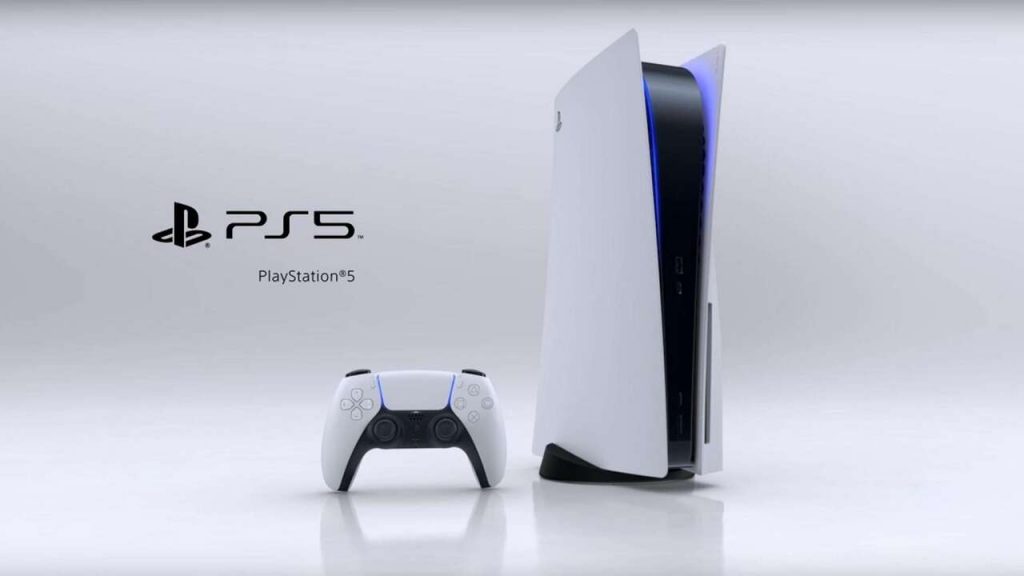
There are a lot of excellent features in the PlayStation 5 from its groundbreaking DualSense controller to its fast load times thanks to its solid-state drive. While there’s plenty to love about it, one area where it’s undeniably lacking is its storage capacity. All PS5 consoles, regardless of whether they’re the disk or diskless versions, are only outfitted with 825GB of internal storage, which actually only translates to roughly 667GB available to the player after all of the required system information is subtracted.
Luckily, players aren’t limited to just over half of 1TB of storage if they’re willing to purchase an external hard drive. If you’re someone who saves a lot of gameplay footage and screenshots, using an external drive is one of the easiest ways to get footage from your console to your computer. Here’s how to do it.
Formatting Your Hard Drive
In order to properly use a hard drive with a device, the drive needs to be formatted correctly, regardless of what type of drive it is. There are a few ways to do it, but it can be done easily with the PS5 itself. Take note that formatting a hard drive means that all of the data on it pre-formatting will be wiped, so make sure to save any desired files elsewhere before formatting. Once you’re ready plug your external drive into the front USB port of the PS5.
Turn your console on and navigate to the settings menu. Once there, scroll down to “Storage” and then select the “USB Extended Storage” tab. Select “Format as Extended USB Storage” once you’re ready to have your device formatted. Depending on how much storage is on your device, this may take several minutes to complete. Once it’s done, you’ll be ready to start saving footage and screenshots onto your device.
Saving Screenshots and Video Clips to Your External Device
Once your external drive is formatted and you have clips or screenshots that you’re ready to transfer over, select the “Media Gallery” app from the PS5 dashboard. If it’s not automatically pinned to the dashboard, hit the “Share” button and enter the gallery through the “Share” menu.
Inside the Media Gallery, find the clip you want to transfer and select it. Once it’s full screen, navigate the menu in the bottom left corner and select the three dots with the text reading “More.” Select “Copy to USB Drive” and then “Copy” and the capture will be copied over to your drive. If it’s a long, high-res video, the transfer process may take a few minutes.
If you’re looking to transfer multiple clips or screenshots at once, select the check mark box icon on the left side of the screen when viewing the entire gallery and then select the media you want to copy over. Once you’ve selected the media you want, select the three-dot icon on the right side of the screen and then select “Copy to USB Drive” and then “Copy.” Once you’ve done that, you’ll be able to see your copy progress through the “Upload” menu.