Table of Contents[Hide][Show]
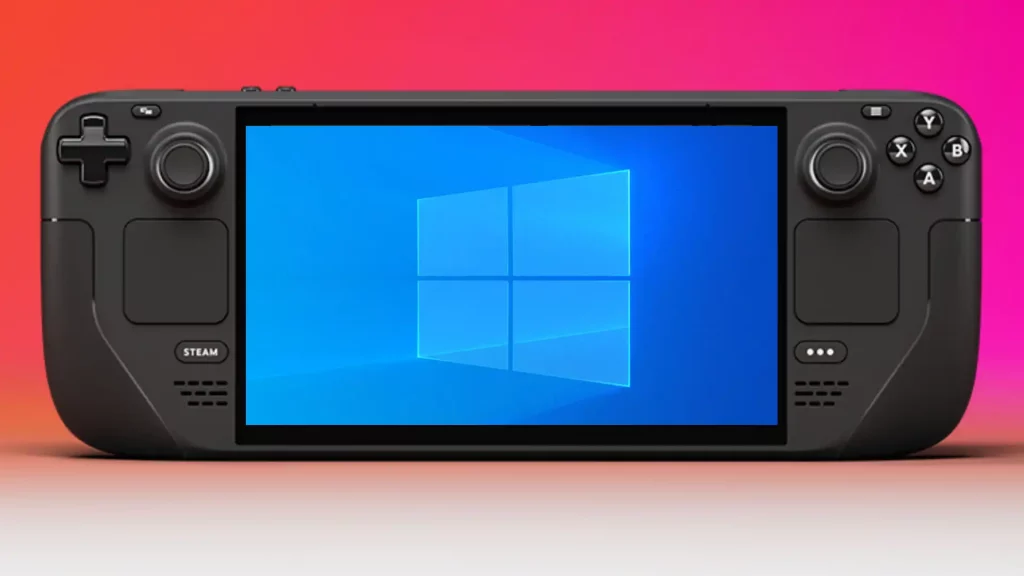
The Steam Deck is a very cool device that works both like a Nintendo Switch and PC wrapped into one. It is basically a hadnheld PC where you can play your games easily in the bed, outside on your porch, or even on the go. It contains your whole Steam library on the handy device even allowing you to put in a SD card for more storage. However, you can also browse on the internet and run other games with its Linux-based OS.
In a update last spring, the Steam Deck will now allow players to install Windows OS 10 and 11 straight to the device, however, it is a little more tricky than you might think. When installing Windows on the Steam Deck’s SSD, you will have to wipe the device’s SSD. Doing this is…not an ideal thing and carries many risk as well as a headache for the user. If you want to download Windows on your Steam Deck, we are going to teach you how today.
More On The Steam Deck:
Disney Dreamlight Valley Is Verified On The Steam Deck | Steam Deck Begins Shipping in East Asia | Spider-Man: Miles Morales Verified For Valve’s Steam Deck | Sonic Frontiers Can Be Played On Steam Deck | The Steam Deck Interface Is Coming For Steam Big Picture Mode | The Best Steam Deck Alternatives | Cyberpunk 2077 Among the Most-Played Games on Steam Deck | Tips and Tricks For First Time Owners
What You Need
First things first, here is a list of items that will be needed for installing Windows on your Steam Deck.
- A Windows PC or laptop
- 32GB USh micro-SD
- 32Gb USB Drive
- SD Card reader
- A Keyboard and mouse – this is optional but very nice to use.
You will also need to download files which you can find below.
- Download Windows OS here.
- Download the UBS Boot program Rufus here.
The First Steps To Downloading Windows For Steam Deck
We are going to try and break this down as simple as we can to help you download Windows on your Steam Deck since this is already a difficult thing to do for some.
- First, make sure the Windows Creation Tool from the website linked above is downloaded and ready to be worked with. Now open the Windows Creation Tool.
- When open, click Create Installation and find the Windows 10 ISO file.
- After that, download it to the Windows drivers files and place those files onto a seprate UBS drive.
- Now, plug in the micro-SD reader and open Rufus.
- From here, select the Device option, navigate to the Windows ISO and click on the Select button.
- Make sure that the Windows.iso is under Boot Selection, then under the Image Option dropdown make sure to select Windows To Go.
- While in the Partition Scheme, select the MBR.
- From the Format Option, you will want to select the NTFS option.
- Then click on the Ready button.
- Now power down your Steam Deck and insert the micro-SD card into the slot located on the bottom of the Steam Deck.
- Now press and hold the Power and the Volume Down buttons this will make the Steam Deck open its boot menu.
Installing Windows On Steam Deck
- Select the Windows option in the boot menu, Windows will lanch in portrait mode.
- You can now connect a keyboard and a mouse to use or just simply use the touchpad on the Steam Deck.
- Now go to Settings>System>Display>Display Orietnation
- Now select landscape and flip the screen to the correct position needed.
- Plug the USB-C card reader into the Steam Deck and connect the UBS that has Windows downloaded on it.
- Install the drivers now.
- This will now run Windows 10 or 11 on the Steam Deck without it installing it on the SSD.
Hopefully this guide was simple and helpful to everyone wondering how to download Windows onto their Steam Deck. You can now buy the Steam Deck from the Steam website along with the dock. Happy gaming!