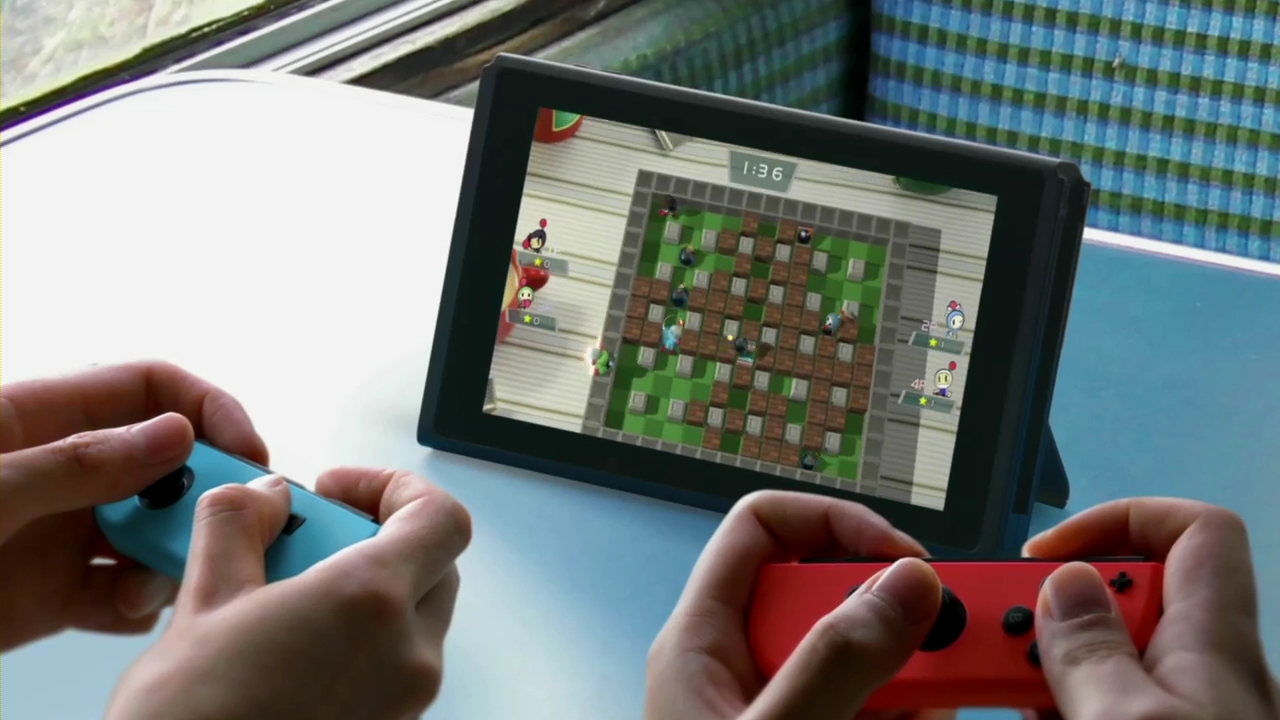
The Nintendo Switch is a complicated system for gaming outsiders to grasp — and even die-hard fans don’t fully understand every facet of the hybrid console’s design. There’s plenty of info to unpack, but one feature we’re happy to see is the ability to take screenshots.
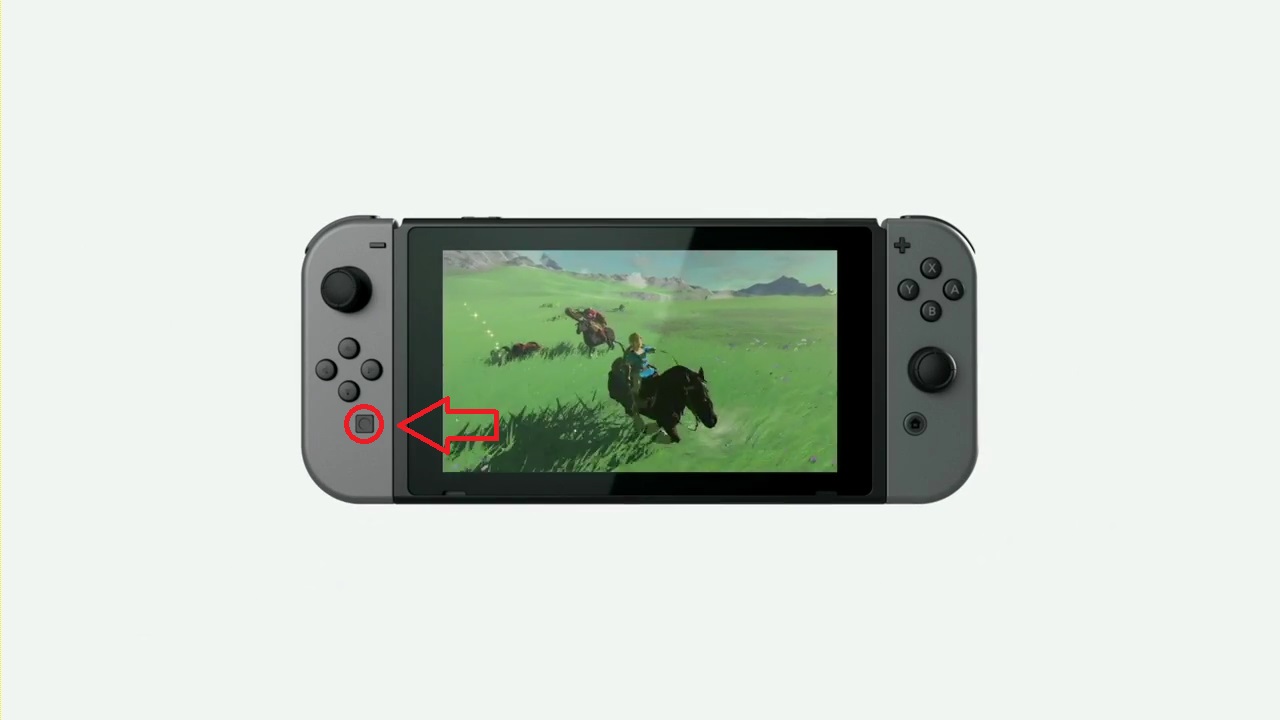
Yes, you can now take screenshots of any screen on a Nintendo console. This isn’t the limited 3DS snapshot ability. At any point during gameplay, or while browsing, you can grab a screenshot and share it with friends online, or save it to a personal album for storage. There’s no need for additional subscriptions, and the whole process is controlled with a single (new!) button on your included Joy-Con controllers.
Still need more info on the Nintendo Switch? Here’s our full breakdown, covering almost every aspect of the system, including release games, console configurations, and all the new features. If you’re a long-time Nintendo fan, make sure you sign-up for the new Switch Nintendo Accounts to register early.
How to Take (And Share) Screenshots
Taking a screenshot on the Nintendo Switch is pretty easy — you can capture screens on the Home Screen or in-game and you won’t need a subscription to Nintendo’s online service to use the feature. This is in contrast to the Xbox One, which severely limits the screenshot / footage feature if you don’t have an Xbox Live account.
- How to Take Screenshots on the Switch:
- Tap the [Square] button on the Left Joy-Con to capture a photo of your current screen.
- The [Square] button on the Left Joy-Con is the dedicated screenshot button.
- To view your screenshots, open Album in the Home Menu.
- Screenshots can be saved to System Memory -or- to microSD card.
- Tap the [Square] button on the Left Joy-Con to capture a photo of your current screen.
Now that we know how to take screenshots, there are a few things you can actually do with them — other than delete or filter in the Album menu. Select a screenshot, and you’ll be able to share it in a variety of ways.
- How to Share Screenshots
- Select a Screenshot in the Album by pressing [A].
- Press [A] again to access the Editing & Posting Options
- Do this to: Enter Text, Copy, Delete or Post
- Enter Text allows you to type a message on top of the screenshot.
- You can change text size, position / angle, color of text, then stamp the text onto your screenshot.
- Post requires that the Nintendo Switch be updated to the latest version of the system software.
- Post allows you to share the screenshot on linked social media sites.
- The Copy option allows you to copy your screenshot into the microSD card inserted in the Nintendo Switch.
- After copying a screenshot, you’ll be able to access the album folder on a computer or smart phone.
Nintendo has promised that more screenshot / capture features will become available post-launch for the Nintendo Switch. We’ll update with any fresh information.