
Table of Contents[Hide][Show]
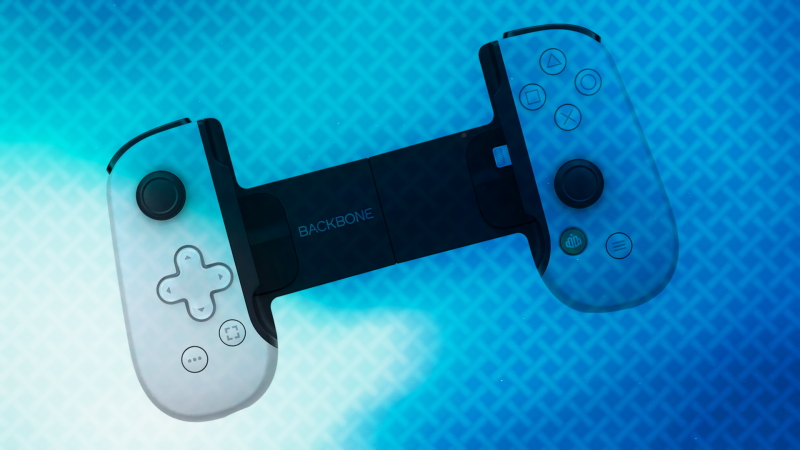
PlayStation gave up on making portable, handheld consoles like the PlayStation Portable and the PlayStation Vita years ago, but that doesn’t mean that the company has completely left those who don’t want to be tethered to their console in the dust. Remote Play is a PlayStation feature that allows you to use your PS5 from your phone with either on-screen button prompts or a paired controller.
It’s a feature that’s been available since the PS4, however, with the hardware improvements made to the PS5 and the increased support for mobile gaming controllers, Remote Play has really found its stride with the latest Sony console. While Remote Play doesn’t allow users to control their PS5 from anywhere like cloud streaming for the Xbox Series X and S does, it can open up a PS5 owner’s options on how and, perhaps more importantly, where to play.
Use the following guide to learn everything you need to know about PS5 Remote Play and how to use it to play games from your mobile devices.
PlayStation Remote Play Explained
Before setting up Remote Play, it’s important to understand what makes it different from using your PS5 directly. As mentioned above, Remote Play isn’t able to be used from anywhere like game streaming is. Instead, in order to connect to your PS5, you’ll need to be connected to the same WiFi network as it is. This means that Remote Play isn’t truly a portable gaming solution for PlayStation fans, instead, a nice way to play games without needing to be sitting in front of your TV or gaming monitor.
The other important thing to note is that your experience with Remote Play will largely be dependent on your WiFi connection speeds. If you have slower internet, you’ll likely experience some input delay meaning that it might be difficult to play games that require a lot of precision. It’s not impossible to do, however, if you’re using Remote Play, make sure you use it with the understanding that the games may feel different than if you were playing on a console.
How to Use PlayStation Remote Play
To use Remote Play on your PS5, first, turn on your console and go into the settings via the gear icon on the top right corner of the dashboard. Select the “System” menu and then navigate down to the “Remote Play” tab. Toggle “Enable Remote Play” so that it’s on.
Go to your mobile device and download the free PS Remote Play app from your phone’s app store. Take note that this app is different from the PS App that’s used for managing your PlayStation account. With the app downloaded, open it and then sign into your PSN account via the on-screen prompt. Once you’ve signed in, you’ll be given a pop-up that tells you how to pair a PlayStation controller to your phone. You can do this now or later, but to pair a DualShock 4 or a DualSense, go to your phone’s BlueTooth settings and then hold down the PlayStation button and the “Share” button on your controller until the lights on it start blinking. Once they are, you’ll see the controller listed as a potential pairable device on your phone. Select it and it’ll be connected. It’s worth noting that you can still use remote play without a controller thanks to the on-screen button prompts that are laid out for you, but it’s tough to play most games like that, so using a controller is recommended. If you don’t have a PlayStation controller on hand, check out this guide on how to use Remote Play using an Xbox controller.
With a controller ready, go back to the PS Remote Play app and select “OK.” Select the type of console you want to connect to, a PS4 or a PS5, and then the app will start searching for your console via WiFi. It may take a few minutes to pair, but once it does, your screen will change to the PS5 dashboard and you’ll be able to control your console.
Each time you open the app now, you’ll be directly taken to a screen that prompts you to connect to the last device that you used for Remote Play. If it was your home console, select it from the blue icon in the center of the screen and your phone will pair remotely.