
The Playstation 5 is available for everyone, and there are tons of new features you might not know about on Sony’s beastly machine. This isn’t just a beefier PS4 — well, it is, but it’s also got unique features that you’ll only find on the PS5. Some of these features are totally going to affect your gaming experience and you won’t even know how much better things can be.
That’s why we went through all the settings and picked out 7 specific options you might want to change. Some of these are personal preferences, some are useful for playing with the family, or with friends — others are just the obvious choice. Scroll down to see what features you really need to know about on the PS5 console.
More Playstation 5 info you need to know:
All The PS4 Games You Can Play On PS5 | Backwards Compatibility List | How To Transfer Save Files & Games From PS4 To PS5 | How To Use PSVR With The PS5 | VR Backwards Compatibility Guide
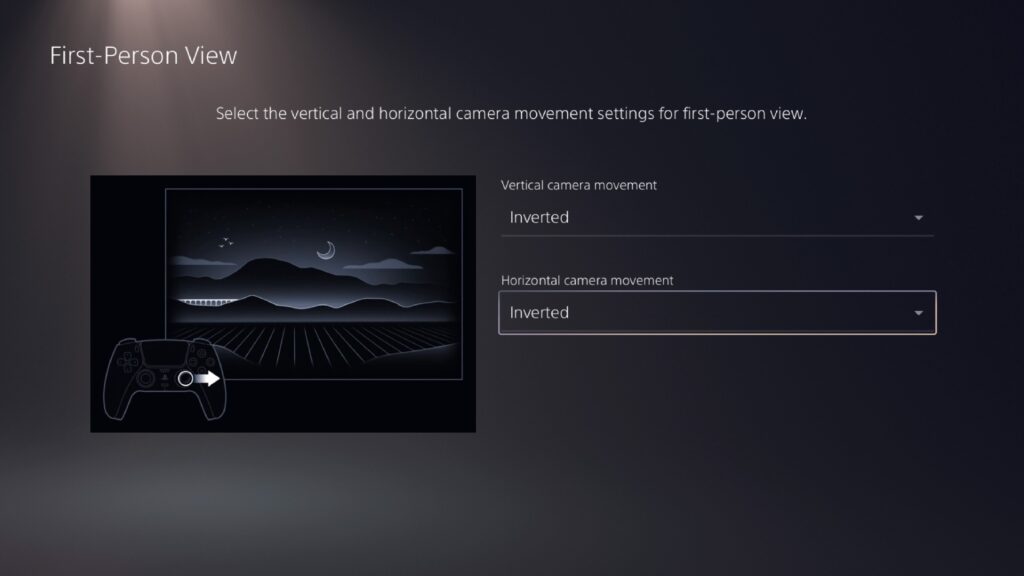
Automatically Set Your FPS Controls To Inverted
My brother plays every FPS game with inverted controls. Now you can set every game — you can set inverted controls for all First-Person View games or Third-Person View games.
- Go To Settings -> Save Data and Game / App Settings -> Game Presets
- Under “Game Presets” select “First-Person View” or “Third-Person View“
- In the sub-menu, you can set horizontal / vertical view to Inverted. This will apply Inverted controls to every game with these view modes.
Larger Text Size
Even with my perfect vision, sometimes I’d like the subtitle text to be a little larger on my TV. You can now control the text size in Accessibility options.
- Go to Settings -> Accessibility -> Display
- Scroll to “Text Size” and select. Now you can choose to make the text smaller or larger — up to Very Large.
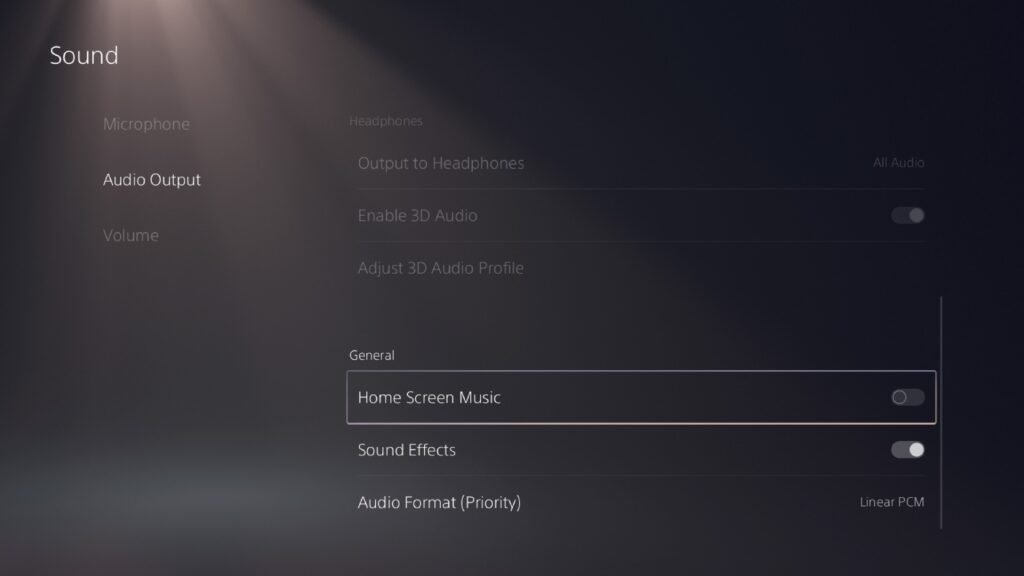
Turn Off Home Screen Music
Normally, your home screen has music and sound effects. If you want a quieter experience between games or watching movies / TV on Netflix, you can disable the music or the sound effects while browsing the menus.
- Go to Setting -> Sound -> Audio Output
- Scroll down to General and toggle off “Home Screen Music”
- Beneath “Home Screen Music” you’ll also find “Sound Effects” — if you want to toggle those off too, go ahead.
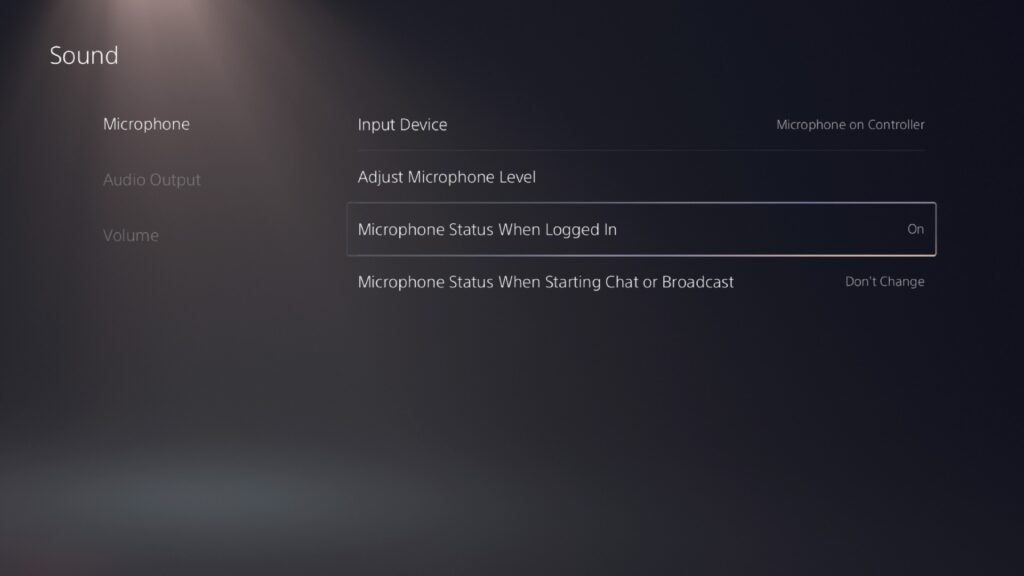
Mute Your Controller Microphone
Every PS5 Controller comes with a built-in mic you can use to chat online. Not all of us want the world to hear us eating snacks between battle royales, so you might want to mute your microphone. You can re-enable it any time.
- Go to Settings -> Sounds -> Microphone
- Scroll to “Microphone Status When Logged In” and select “Mute“
Change Your Controller Sound
Some sound effects can play through the controller’s built-in speaker. The sound will be the same even if you’ve muted your TV. If you need a quiet playtime, you might need to make the Controller Speaker much quieter.
- Go to Settings -> Sounds -> Volume
- Select “Controller Speaker” and move the meter to change the volume. Lower it to completely mute it.
Adding Closed Captions To Subtitles
Closed Captioning is no longer dependent on the game — you can actually enable it or disable it in settings. This adds more description for any sound effects or noises to help aid players with audio accessibility needs.
- Go to Settings -> Accessibility -> Closed Captions
- Select “Display Closed Captions” and toggle on.
- Use the “Closed Captions Settings” to further customize what will and won’t appear in closed captions.
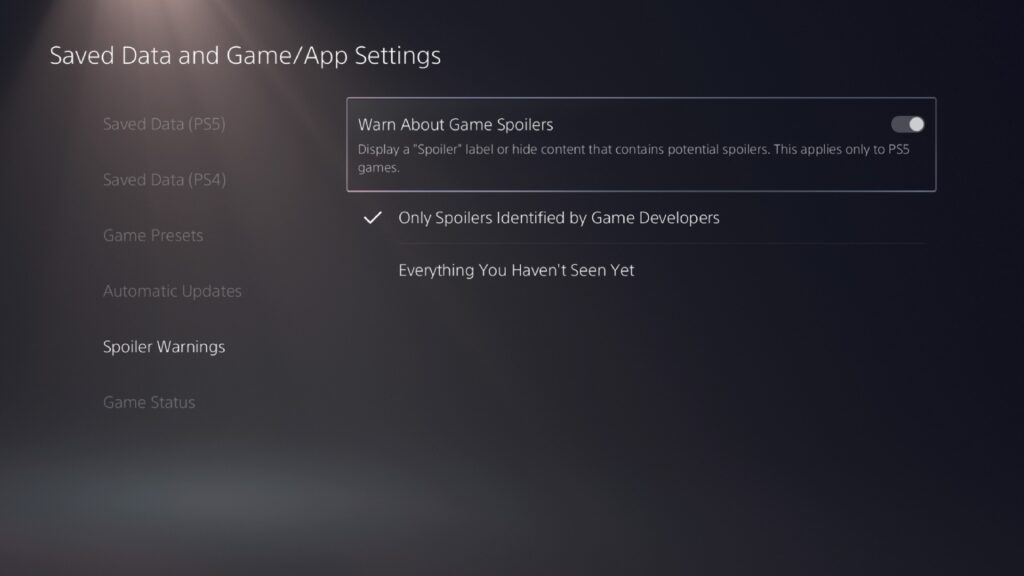
Protect Yourself From Community Spoilers
You can now choose to censor any community screenshots, video, or content shared via PS5 that may present a spoiler. You can control the amount of spoiler content you see in the settings.
- Go to Settings -> Saved Data and Game / App Settings -> Spoiler Warning
- Here, you toggle “Warn About Game Spoilers” — when active, you’ll be warned before looking at any content that has been marked as a spoiler by the game’s developers.
- You can also mark everything as a spoiler for a game by switching to “Everything You Haven’t Seen Yet“
You can also disable spoiler warnings completely if you really don’t care.
There are many, many more features you’ll want to explore on the PS5. This is just a handful we’ve found that were especially useful. Which features are you digging the most?