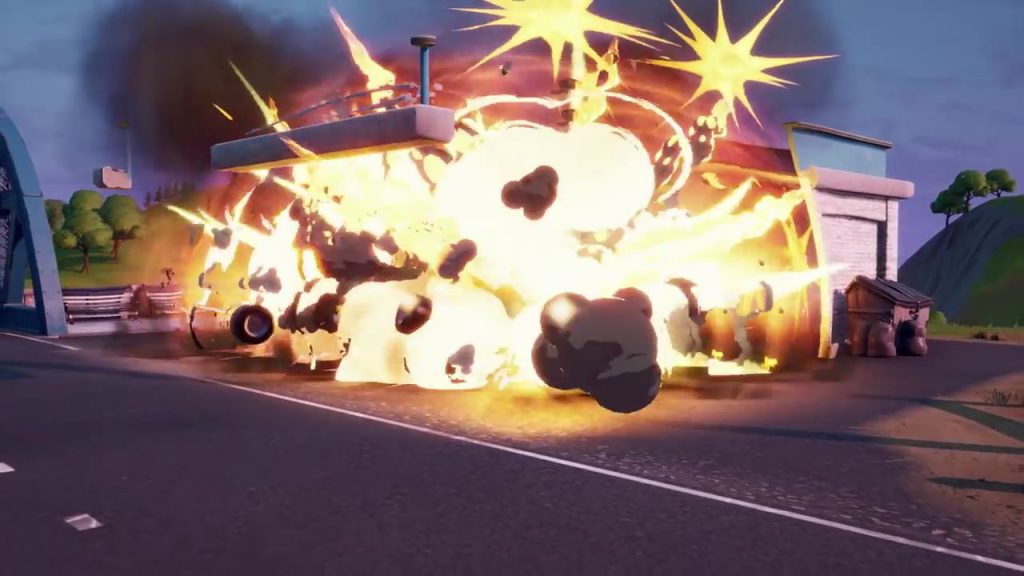
Fortnite: Chapter 2 introduces an entirely new map and updated graphics — along with a lot of other cool stuff. The problem is all in the new graphics. Players are reporting huge FPS drops, stuttering, and more issues. Epic Games responded with a hotfix update, but there are still tons of players reporting bad performance all around. If you’re struggling with your Fortnite: Chapter 2 FPS, here are a few community-driven tips that just might solve your problems.
Chapter 2 is a total revamp of the entire Battle Royale game. Everything has been changed in some way. The Battle Pass, how you earn XP, and the map itself are all different. Old guns are reintroduced, and tons of weapons have been vaulted, giving you only a small selection of weapons while running around. There’s a new focus on water; there are boats with rocket launchers attached, swimming, and you can go fishing for loot. It’s a whole lot of stuff, but it’s hard to enjoy when you’re experiencing bad performance.
More Fortnite: Battle Royale guides:
- Fortnite: Battle Royale – Everything New In Chapter 2 Explained | Map, Fishing, Gunsmithing & More
- Fortnite: Chapter 2 – Here’s How To Upgrade Guns | Gunsmith Station Guide
- Fortnite: Chapter 2 – How To Fish | Best Loot Spots, Fishing Rod Locations & More
- Fortnite: Chapter 2 – How To Earn More XP & Rank Up Tiers Faster | XP Guide
- Fortnite: Black Hole Event – Konami Code Minigame Easter Egg
How To Lower Lag & Improve Performance | Tweaks Guide
Chapter 2 runs worse than the original Fortnite, and lots of players are struggling with the increased demands on PC. Here’s a few tips you can try to improve your performance — it might not work for you, but these simple tweaks have worked for other players in the community.
Lower Sound Quality To ‘Low’ | Or Toggle It Back
Under ‘Audio Settings’ — change Sound Quality to LOW instead of HIGH. This is significantly improving performance for some players. It’s also not as bad as it sounds; instead of literally lowering the sound quality, this setting just limits the total amount of sounds that can happen at any given time.
The Epic Twitter account suggests turning Sound Quality to LOW then back to HIGH to resolve the issue.
Turn Off Multi-Thread Rendering | Or Turn It On
If you’re experiencing annoying hitches, try disabling Multi-Thread Rendering. This setting is designing to help high-end CPUs improve performance. If you’re using an older CPU, then there’s no reason to leave this setting on. Turn it off and you might just get an FPS bump.
If you’re using a higher-end CPU, or if you had this feature set to OFF earlier, you might want to try turning it ON. Some people are getting improved performance bumps — depending on your system, it can go either way.
Turn Off 3D Sound / Audio
Another simple, quick change to Audio Settings. If you have 3D Sound / Audio ON, turn it to OFF.
Switch To Windowed Fullscreen
Instead of playing on Normal Fullscreen, you can try swapping to Windowed Fullscreen in the Graphics Settings menu. For whatever reason, this simple change is improving FPS for some players.
Change ‘Low Latency’ On Nvidia or ‘Antilag’ on AMD
If you’re using an Nvidia GPU, you can go into the settings and bump up the ‘Low Latency‘ Setting to ‘On‘ or ‘Ultra‘ to improve FPS. This setting may also be called ‘Maximum Pre-Rendered Frames‘ on older Nvidia GPUs. Set it to ‘1‘ for best performance. If you’ve got an AMD GPU instead, look for the ‘Antilag‘ Setting.
Lower Your Resolution
This is a last-ditch change, but if you’re really looking to improve your FPS, you might need to lower your resolution settings. The resolution seems to be the biggest cause of lower FPS — the rest of your settings don’t need to be low.
But, if lowering the resolution doesn’t seem to help, you might need to change drop all the settings down that you can. It’s not a great solution, but hopefully Epic will patch in a fix and improve performance in the coming days / weeks.