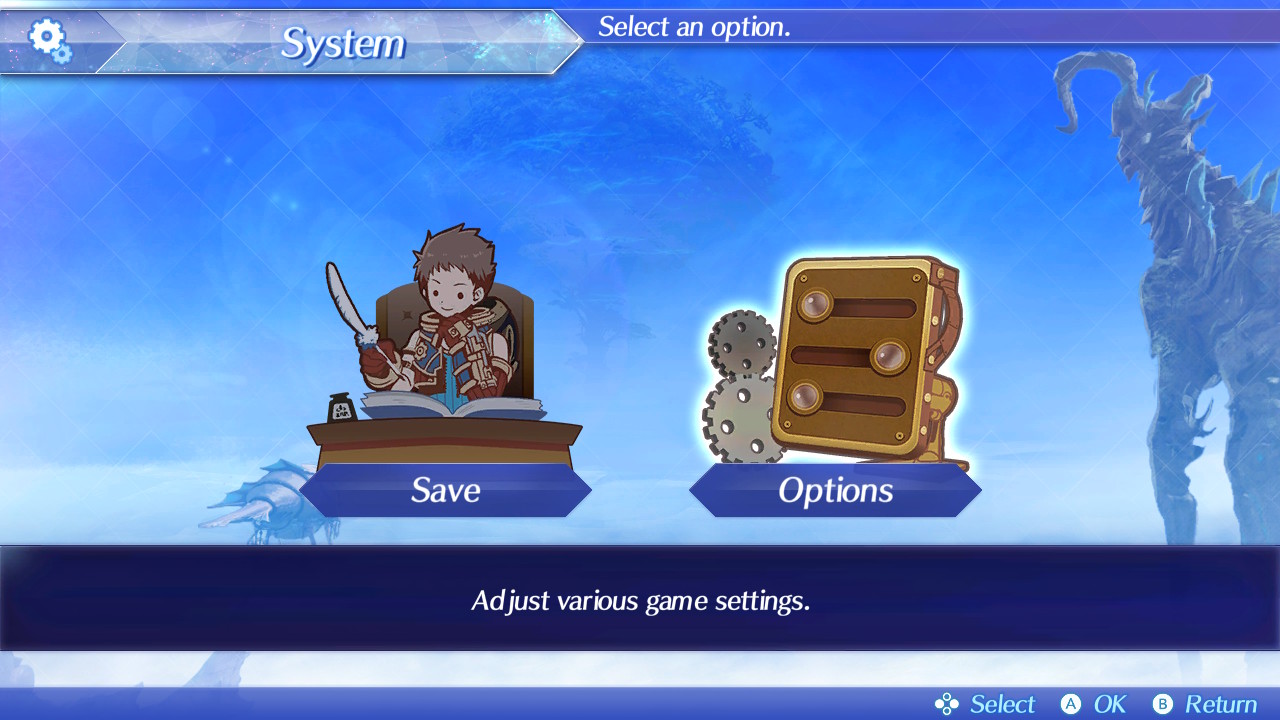
Tired of the constant chatter you’ll hear during battles in Xenoblade Chronicles 2? Thankfully, there’s a way to diminish or remove it entirely.
Anyone that’s played the game for an extended amount of time will surely notice the excessive amount of chatter between characters during battle — sometimes you’ll hear the same enemies grunting the same lines a dozen or more times in the same battle! It’s not always terrible, but it can really ruin the mood when you’re enjoying a lengthy JRPG play session. Even worse, all that talking drowns out the awesome music.
Yeah, that can’t stand. I wouldn’t be surprised if a patch lands in the near future that completely diminishes the constant, grating battle chatter — but if you want to put an end to the noise right away, it’s actually pretty easy. All you have to do is open the Options menu. We’ll describe all the details (with pictures!) in the guide below.
More Xenoblade Chronicles 2 guides on Gameranx:
- Xenoblade Chronicles 2 Walkthrough | Chapter 1: Encounters
- Xenoblade Chronicles 2: How To Level Up Quickly | XP Guide
- Xenoblade Chronicles 2: How To Earn Money Quickly | Farming Guide
How To Mute “Battle Narration”
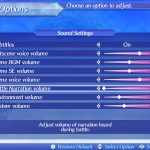

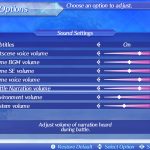
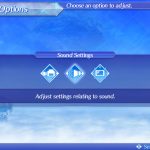
Follow the steps below or check out the gallery for a very simple explanation, showing you how to disable all battle chatter, in-game.
- Open the “Main Menu” and select “System”
- In the “System” Menu, select “Options”
- Select “Sound Settings”
- Scroll down to find “Battle Narration volume” in the “Sound Settings” menu
- Select it and scroll down to completely mute all Battle Narration.
You can re-enable Battle Chatter by increasing the volume on the “Battle Narration volume” setting, or press [X] to restore defaults while in the Sound Settings menu.
You can disable or re-enable sound any time in-game, so if you’re feeling some Stockholm Syndrome and the game just sounds too quiet, you can easily revert back to default sound settings and continue like normal, or disable it against human opponents. When you’re fighting multiple human opponents, it gets pretty noisy.