
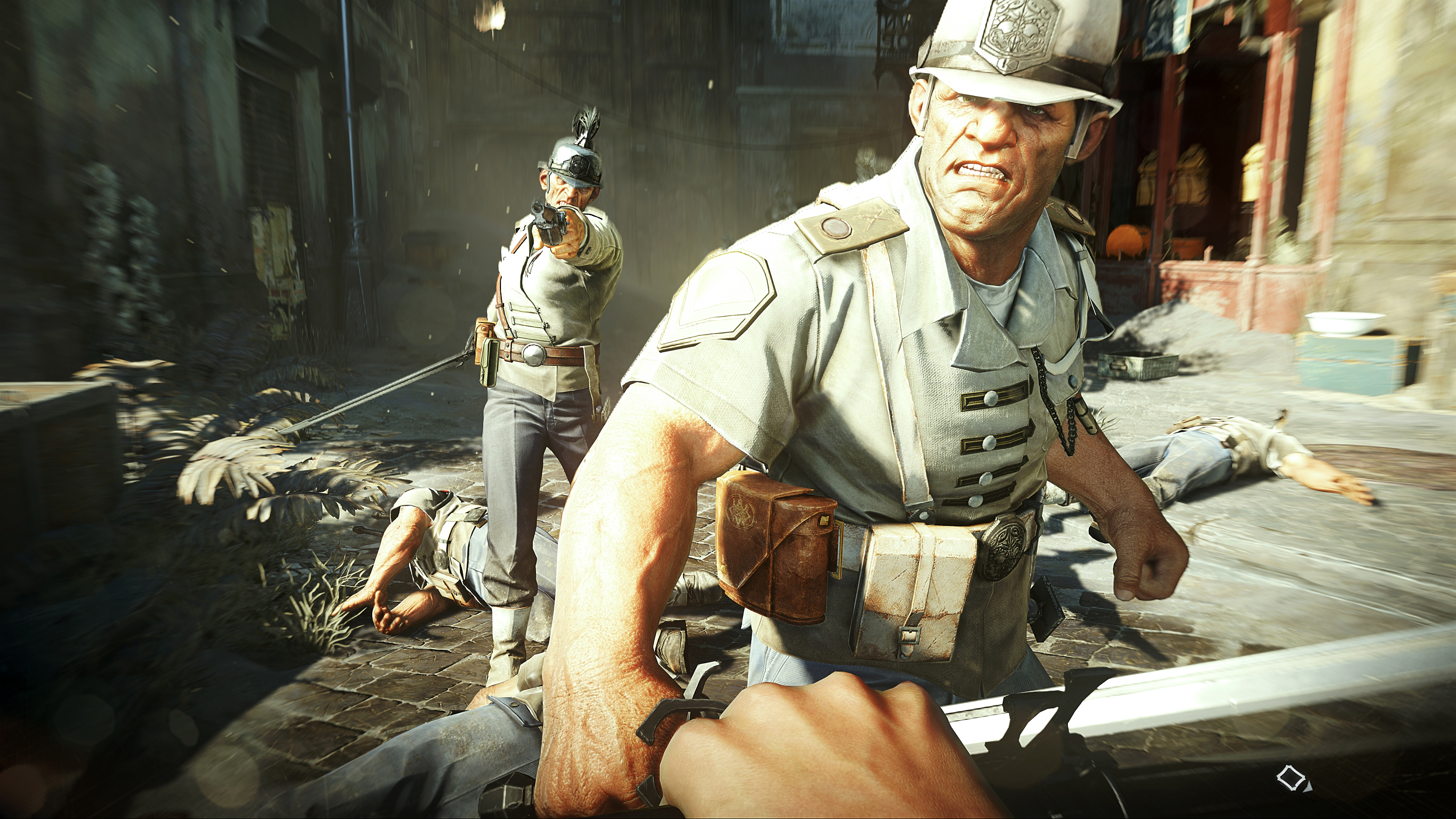
Dishonored 2 is getting slammed on Steam for a buggy PC release, and some of those bugs are causing huge FPS drops for players expecting much better performance. The current release of Dishonored 2 on PC is a mess of bugs, with a number of settings and factors lowering framerate for seemingly arbitrary reasons — automatic low CPU priority in the Task Manager, FPS linked to mouse speed, and far too many pre-rendered frames.
Basically, Dishonored 2 needs a patch pronto. In the meantime, here are some ways you can temporarily alleviate all the problems in Dishonored 2 so you can at least make it playable.
PC Optimization Guide
[NOTE: Be aware that the steep decline in performance may only be temporary. All of the issues described here, as reported by the community, can (and should) be patched. These are stop-gap solutions before the full fixes come from Bethesda and Arkane.]
Before getting started, here are a few basic ways to improve performance. It seems these three settings are the biggest hits on performance in Dishonored 2:
- Texture Quality
- TXAA
- View Distance
Lower one or all of these settings for a steep jump in performance.
Lower Pre-Rendered Frames
By default, Dishonored 2 will render too many pre-rendered frames for smooth performance. To lower this setting manually, you’ll need to exit the game and use separate video card setting programs to change this.
- On NVIDIA: Go to the NVIDIA Control Panel -> Manage 3D Settings -> Go to ‘Program Settings’ -> Select Dishonored 2 -> Override the default and change ‘Maximum pre-rendered frames’ to 1 or 2.
- On AMD: Use third-party software like RadeonPro to alter these settings. Find RadeonPro here.
Changing these settings will help diminish input lag and allow you to keep your high settings.
Mouse Smoothing
The mouse speed is driving some Dishonored 2 early-adopters up a wall. When trying to turn, the FPS dips dramatically, and there is no apparent mouse-smoothing settings to use. Instead, you’ll have to edit the .config file and manually change some settings.
- Find the config file you need to edit here:
- \Saved Games\Arkane Studios\dishonored2\base\dishonored2Config.cfg
Open this file with word or notepad. Only use word processing programs that do not automatically format text.
- Once open, press Crtl+F and search for “smooth”
- Change g_mousesmooth from 1 to 0.
- Save the file.
- Right-click the file and select “READ ONLY” and apply.
If you don’t change the file to “READ ONLY” it will automatically change back to its previous version. This should help improve mouse performance, although some report only minor gains from this change.
Render Scale / Adaptive Resolution
This poorly implemented optimization is actually causing FPS drops across the board. To fix this bug, alter your settings:
- Set Render Scale / Adaptive Resolution to from 75 (Default) to 100.
This means your resolution will properly match your native screen size instead of automatically shrinking and re-fitting to scale. The optimization might help lower-end computers that way to present resolution settings they’re not meant to use, but high-end PCs won’t need it.
Low Priority Settings
For some reason, Dishonored 2 is automatically set to run at Low Priority on Windows 10. To change this, open the Task Manager [Ctrl+Alt+Del] and find Dishonored 2.
- Right-click Dishonored 2 in the Task Manager under the Processes tab. Set Priority to HIGH.
For some, this seems to reset every few seconds — or after every loading screen. For others, the priority setting automatically changes when alt-tabbed out of the program, so this may not be a solution for you.
Find more Dishonored 2 guides, collectible locations, and quest walkthroughs on Gameranx:
- Dishonored 2: How to Open Every Safe | Combinations & Keys Guide
- Dishonored 2: All Audiographs & Journals | ‘Royal Spymaster’ Guide
- Dishonored 2: All Ship Decoration Locations | ‘Souvenirs’ Guide
- Dishonored 2: How to Rob Every Black Market | Easy Cash & Free Items
- Dishonored 2: Weapon & Gadget Blueprints Locations | Upgrades Guide
- Dishonored 2: Rune & Bonecharm Locations | Upgrades Guide
- Dishonored 2: Painting Locations | Collectibles Guide
- Dishonored 2: All Side Missions Guide | Optional Quest Walkthroughs
- Dishonored 2: How to Rob the Black Market | ‘Black Market Burglar’ Guide
- Dishonored 2: How to Solve the Jindosh Lock Puzzle | Eureka Guide


