Table of Contents[Hide][Show]
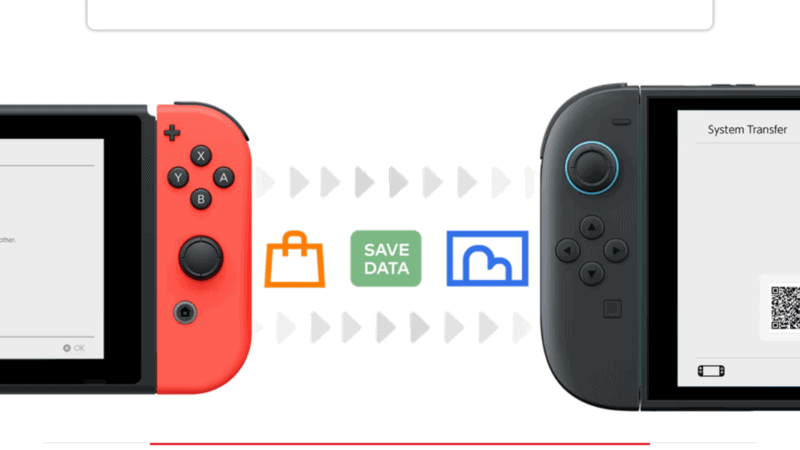
The first thing you need to do on your new Nintendo Switch 2 console is use the Data Transfer feature — if you don’t do it right away, you’ll have to reset your system to do it later. That means any games you’ve downloaded or save files will get deleted permanently — that’s not great, so we highly recommend following the start-up instructions when you start the Nintendo Switch 2 for the first time. It can mean the difference between losing all your save game files or smoothly transitioning straight to the Switch 2.
What Is Data Transfer?
Let’s back up and explain what Data Transfer even is for the uninitiated. Data Transfer is a function that transfers save data, digital games and settings from your Switch 1 to your Switch 2. Only a limited number of save files won’t transfer — only games that don’t fully work with the Nintendo Switch 2, which is less than 1% of the entire library. Transferring essentially copies your Switch 1 account to the Switch 2 so you can start playing new games and all your old games immediately.
- What Does Data Transfer Copy To Switch 2?
- User profiles
- Purchased digital games
- Game save data
- Screenshots / videos
- Parental controls
You can choose to disable or not copy over certain options — you can choose to skip copying screenshots / videos for example.
Using Data Transfer from the Nintendo Switch 1 to the Switch 2 does NOT delete save data or games — or your profile — from the original Switch 1. The only profiles that WILL be deleted and moved over are profiles that are NOT linked to a Nintendo Online Account. Keep that in
How To Use Data Transfer
After starting up your Nintendo Switch 2 console for the first time, you’ll be instructed to perform the Data Transfer — you’ll need an internet connection and the ability to log-in to your Nintendo Online account.
- After starting the Switch 2 for the first time, you’ll be given the option to Start System Transfer (if you have a Switch 1) or to skip.
- If you own an Express MicroSD card, you’ll be instructed to insert it. This is not required.
- You’ll be instructed to sign-in to your Nintendo Account. This should be the same account of the profile you want to transfer.
- If you aren’t already, connect the Switch 2 to AC Power before downloading will begin.
Next, place the Source System (Switch 1) close to the Switch 2. They can be in the same room.
- Swap to your Switch 1 console and follow these steps: open the HOME menu on the Switch 1 and go to System Settings (Gear Symbol) -> System -> System Transfer
- Under System Transfer, select System Transfer to Switch 2. Press OK and continue until the process begins on your Switch 2.
- On the Switch 2, if everything is working so far, select Start Download to begin.
This may take a while depending on how much data is transferring. The rest of the process is automatic, so you’re almost done!
What If I Skipped Transfer on Startup?
If you chose to skip System Transfer, you could still perform it — but only if you choose to Factory Reset your console. This will delete everything from the current console. You’ll need to redownload all games and may lose save data.
You can find Factory Reset in the System Settings menu but it’s a drastic step to take. Only do this if you really have to reset your system or if you’ve only just started using the Switch 2 so you won’t lose much data when resetting.