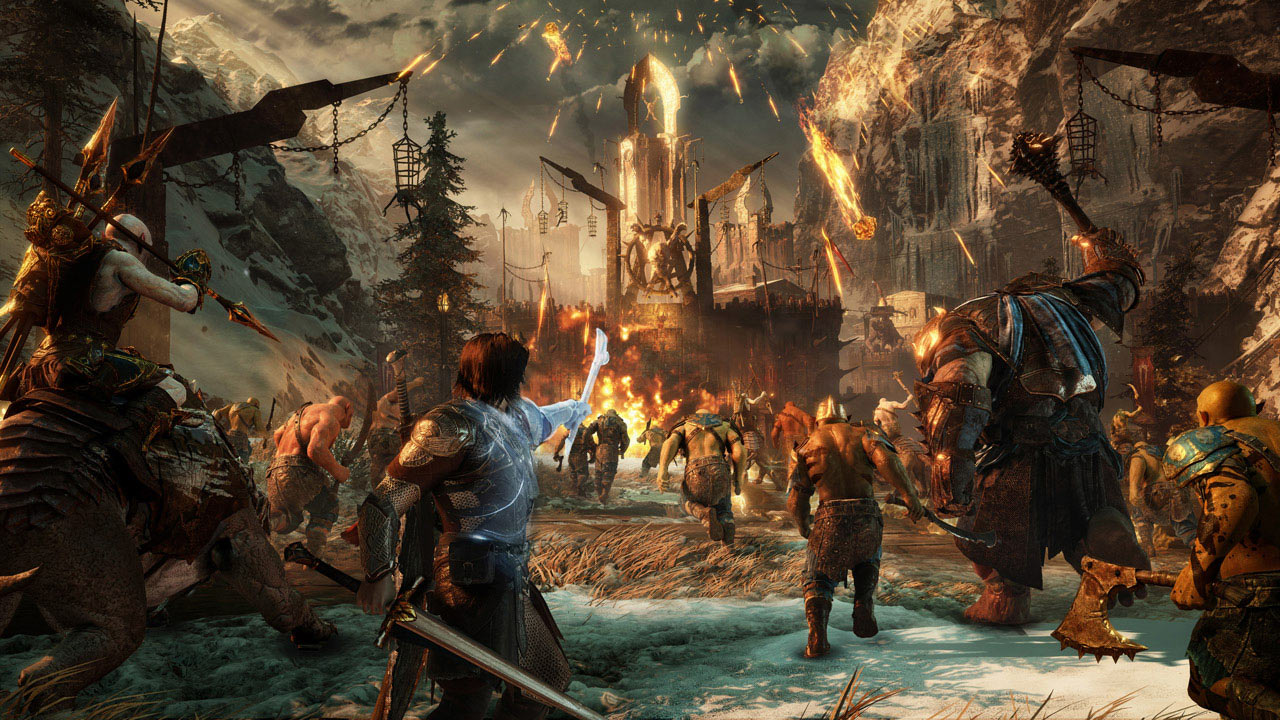
Middle-Earth: Shadow of War is a demanding game on the PC, and fans are already experiencing a whole slew of in-game issues. Many problems are related to extremely low FPS that doesn’t seem to change even when lowering the graphics settings. Then there are DirectX errors, preventing the game from starting up at all.
Some issues, like extreme blurriness in-game, are relatively easy to fix. Shadow of War includes a new Dynamic Resolution setting – to maintain a consistent FPS, you can set the Dynamic Resolution to automatically lower your resolution when your FPS dips below a set amount. For some, this feature isn’t working as intended. Find how to fix (or improve) these issues with the list of tips below.
More Middle-Earth: Shadow of Mordor guides on Gameranx:
- Middle-Earth: Shadow of War – All Ithildin Poem Puzzles | Solutions Guide
- Middle-Earth: Shadow of War – Sign-Up To WBPlay For +3% XP Boost
- Middle-Earth: Shadow of War – Unlock These Early Skills For A Better In-Game Experience
- Middle-Earth: Shadow of War – How To Get The True Ending | Act 4 Guide
Direct X Errors, Crashes & Low FPS | PC Fixes Guide
Need more help with issues on PC? Let us know in the comments and we’ll help find a solution.
Direct X Errors
When starting Shadow of War, you’re getting a message like “Direct3D 10.0 API is not available” or “Direct3D 11.1 API is not available“, then you may need to update windows or install Internet Explorer 11.
- To solve the “Direct3D 10.0 API” error message:
- Go to th Shadow of War install folder -> open CommonRedist
- Open DirectX folder and install.
- To solve the “Direct3D 11.1 API” error message:
Low FPS Issues – How to Increase Your FPS
If your system can normally handle games better and you’re seeing significantly lower FPS than normal, try these steps. NOTE: Many players reporting low FPS will notice no difference in FPS, even when lowering graphical settings.
- Download the latest Game Ready Drivers from Nvidia here.
- Disable all anti-virus programs. Don’t just disable, turn-off completely — that includes programs running in the background.
- Press Ctrl+Alt+Delete and find ShadowofWar.exe — set it to High Priority.
- Disable Vsync and check your monitor’s native resolution — make sure Shadow of War matches your native resolution.
- Try running the game in Full Screen and then Windowed modes to see if there is any change in performance.

How To Remove Blurriness
If the game is incredibly blurry, it may be the “Dynamic Resolution” settings.
- Disable Dynamic Resolution in Settings to remove blurriness.
Dynamic Resolution will automatically change your resolution to maintain a consistent FPS. This setting may not be working as intended, so just disable it completely if you’re not happy with your resolution.
- Alternatively, it could be TAA aliasing. Try using only FXAA aliasing for a clearer image.
How To Run In Large Page Mode
To run Large Page Mode with Shadow of War, run Steam.exe as an Administrator.
- Right-click Steam.exe or the shortcut and select “Run as administrator”.
To run Shadow of War specifically as an Administrator, find the Shadow of War installation folder.
- steamapps -> common -> Shadow of War -> x64 -> ShadowofWar.exe
- Right-click ShadowofWar.exe -> Properties -> Compatibility Tab
- Click the box beside “Run as administrator”
- Left-click OK