Thanks to the 4.50 System Software Update, the Playstation 4 now supports external hard drives. That means you can seamlessly add up to an additional 8TB to your system storage, and all you need is an external USB 3.0 HD. Getting an external HD up-and-running is actually really easy. It only takes a few minutes to get an external HD ready for use.
We’ll explain everything you need to know about using an external HD down below. For a fast primer — external HD must be USB 3.0, must be formatted for use when connected to the Playstation 4, and can be used to transfer game and apps. Save files, images, and video captures won’t transfer automatically. Those must be transferred separately.
NOTE: And just as a heads-up, hold down the PS button to open the quick menu and select “Stop Using Extended Storage” if you need to remove the HD. You can remove it at any time, but this is the safest method to ensure your files aren’t corrupted.
How To Setup (And Use!) An External HD
The first step is simple — plug-in the external HD while your PS4 system is on. It may take a moment for your PS4 to recognize that an external HD has been plugged in.
- Step #1: Format the External HD
- Connect the External HD to the PS4 console.
- Go to Settings -> Devices -> USB Storage Devices
- Select “Format as Extended Storage“
- Your External HD will be formatted so that it is compatible.
Do not unplug your external HD at any time during the process. To safely remove your extended storage, open the quick menu and select “Stop Using Extended Storage” — you can plug-in and use the external HD later.
- Step #2: Setting Default Install / Download Location
- After formatting your external storage, it will become the default location for all future installations and downloads.
- External Storage is only compatible with installation files — games and downloads. Screenshots and save files can be transferred to regular, non-External Storage HDs. Yes, it’s a little confusing.
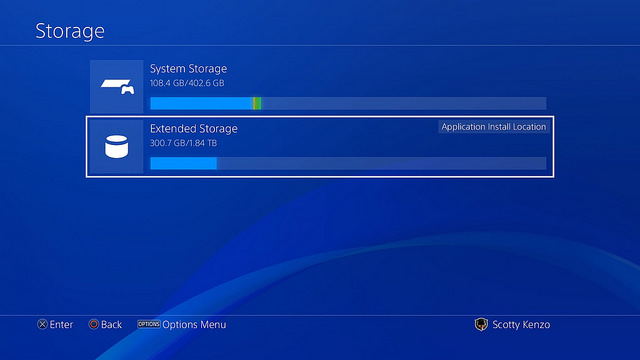
- Go to Settings -> Storage and press [Options] to change the default download / install location.
- After formatting your external storage, it will become the default location for all future installations and downloads.
- Step #3: Transferring Files To External HD
- To transfer installed games / dlc / apps to your External HD…
- Go to Settings -> System Storage -> Applications
- Press [Options] -> Move to Extended Storage
- Check the games you wish to transfer to Extended Storage.
- Select “Move” when you’re finished.
- To transfer installed games / dlc / apps to your External HD…
Games transferred to Extended Storage work just like games on System Storage, as long as the Extended Storage HD is still plugged-in to the PS4 console.
That’s everything you need to know about transferring files. It’s very easy. No screwdrivers required to extend your HD space.