
Table of Contents[Hide][Show]
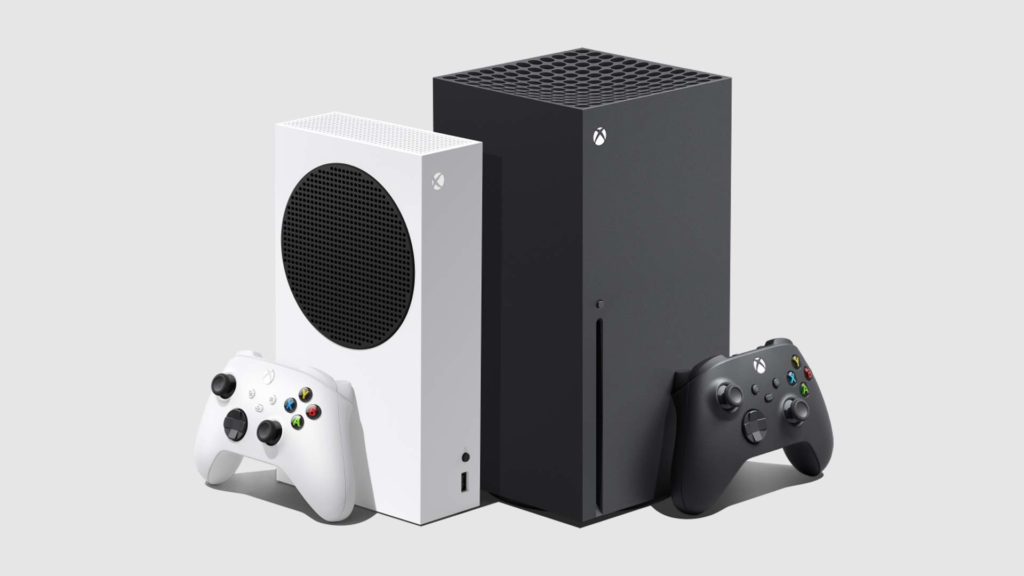
It’s no secret that Xbox has been putting a lot of its time and focus into its mobile gaming division. After all, the company has stated that one of the main reasons it’s pursuing its controversial merger with Activision/Blizzard is to secure the rights to the Candy Crush IP which is one of the biggest mobile franchises ever made. In addition to looking to publish mobile games, Xbox gives its platform users plenty of mobile gaming options with one of its best offers being remote play on the Xbox Series X, S, and One.
Remote play is a simple concept: it allows Xbox owners to use their consoles from their phones or tablets meaning that they don’t need to be sitting in front of a TV or gaming monitor to enjoy games and other Xbox services. Make sure to take note that there’s a big distinction between Xbox remote play and xCloud streaming. Remote play gives Xbox owners control over their consoles using their phones while xCloud streaming accesses a single game, not the entire console, and streams it directly to your phone.
The following guide covers remote play, not xCloud. Here’s everything you need to know about using remote play to access your Xbox Series X, S, or One.
Xbox Remote Play Explained
Before using remote play, there are a few things to know. As mentioned above, Xbox remote play is different than xCloud as it gives users access to their entire console, not just a single game. Additionally, if you want to use remote play, you’ll need to have a controller attached to your phone. Mobile controllers often work best since they’re portable and usually plug directly into your smartphone, but you’re also able to use Xbox Series X, S, One, or even PlayStation controllers.
To pair a wireless controller to your device, go into the settings Bluetooth menu of your smartphone or tablet. For an Xbox controller, turn it on by holding down the Xbox button until it begins to glow, then hold down the pair button on the top of the controller until the Xbox logo starts blinking. Once it does, the controller will be listed as a pairable device on your smartphone. Select it and the controller will pair. For PlayStation controllers, the process is largely the same, but instead of having a devote pair button, you’ll need to hold down the PlayStation button and the “Share” button until the lights on the controller start blinking. Once they do, the controller will be listed as a pairable device in your phone’s settings.
How to Use Xbox Remote Play
Setting up your Xbox Series X, S, or One with remote play is simple. First, turn on your Xbox and go to the settings menu by hitting the Xbox button and switching over to the “Profile and system” tab and then selecting the “Settings” option. Here, scroll down to the “Devices and connections” tab. Once there, select “Remote features” and then make sure that the “Enable remote features” box is ticked. If it’s not, select the box and your Xbox will check to make sure that it’s connected to a solid internet connection and other settings that will make for a good remote play experience.
Once it’s done checking, the box will be ticked. Head to the “General” tab in the settings and then select the “Power options” menu. Make sure that your Xbox is set to “Sleep” as opposed to being powered off.
Take your smartphone and download the Xbox app. Unlike with PlayStation remote play, Xbox remote play is done directly through the Xbox app. Once you have it downloaded, sign into your Xbox account. With the app open, select the library tab at the bottom of the screen represented by an icon of three game cases leaning on one another. Select the “Consoles” tab at the top of the “My library” screen.
Select “Set up a console” and then “Add an existing console.” Select “Next” and then make sure your Xbox Series X, S, or One is turned on and that you’re logged into your profile. Once you’ve done that, you should see that your Xbox is listed on your phone in the app. Select it and then select “Remote play on this device.” You’ll be taken to a loading screen as everything gets set up behind the scenes and then to your Xbox dashboard. With that, you’ll be able to remotely play your Xbox.