In the last year or so, the Xbox Series X gamepad has picked up its own separate head of steam as a go-to controller for both PC and mobile gaming. It’s arguably worth having one lying around, even if you aren’t an Xbox owner, for use on PC ports and cloud applications, but it’s not necessarily obvious how to hook one up to your PC.
Out of the box, the Series X controller is designed to work with Bluetooth. Here’s how to set one up for your PC or mobile device.
Hooking Your Xbox Pad Up to your PC
The easy-mode version here is to invest in a third-party, wired controller for the Xbox Series X|S. This isn’t as dicey a proposition as it would’ve been a decade ago, thankfully; companies like PowerA (below), 8bitdo, Turtle Beach, and Razer all offer their own versions of the Xbox controller, and all of them are decent enough.
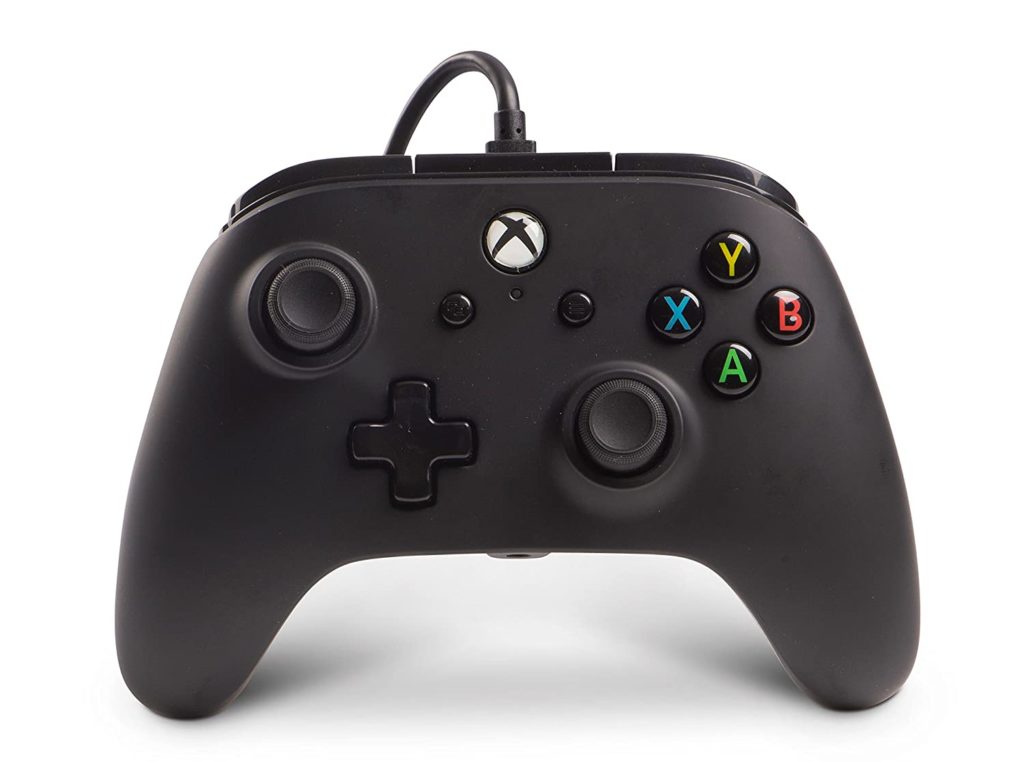
My own go-to for PC gaming on pad is a $35 wired controller from PDP. You can simply plug it into a USB slot on your computer and Windows 10 will do the rest of the setup for you. It’s a little over half the price of an official Xbox pad, you don’t need batteries, and it’s easy enough for even your youngest or oldest relatives to handle.
If you’ve already got one of the wireless Xbox Series X controllers and you want to hook it up to your PC, however, it’s not that much more difficult. Obviously, you’ll need your PC to have some way of connecting to a Bluetooth device; while the Series X pad does have a USB-C port at the top, I wasn’t able to get my PC to recognize it via plugging in a standard cord.
Instead, go to your PC’s Settings menu and select Devices, then Bluetooth. Click on “Add Bluetooth or other device,” then Bluetooth.
At this point, turn on your Xbox controller by holding the Xbox button in the center of the unit. Once the light is on and steady, hold down the Bluetooth button on the top of the controller, near the USB-C port, until the Xbox button begins to flash steadily.
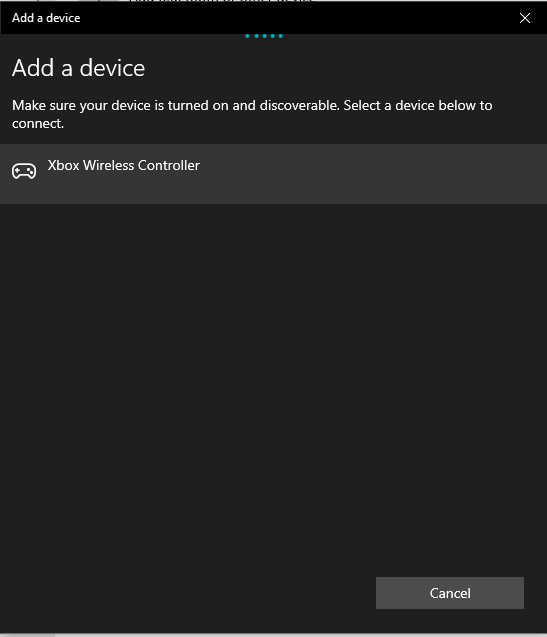
At this point, the controller should be discoverable by your PC (above). Select it and you’ll be ready to go, as Windows 10 automatically recognizes and sets up the Xbox controller.