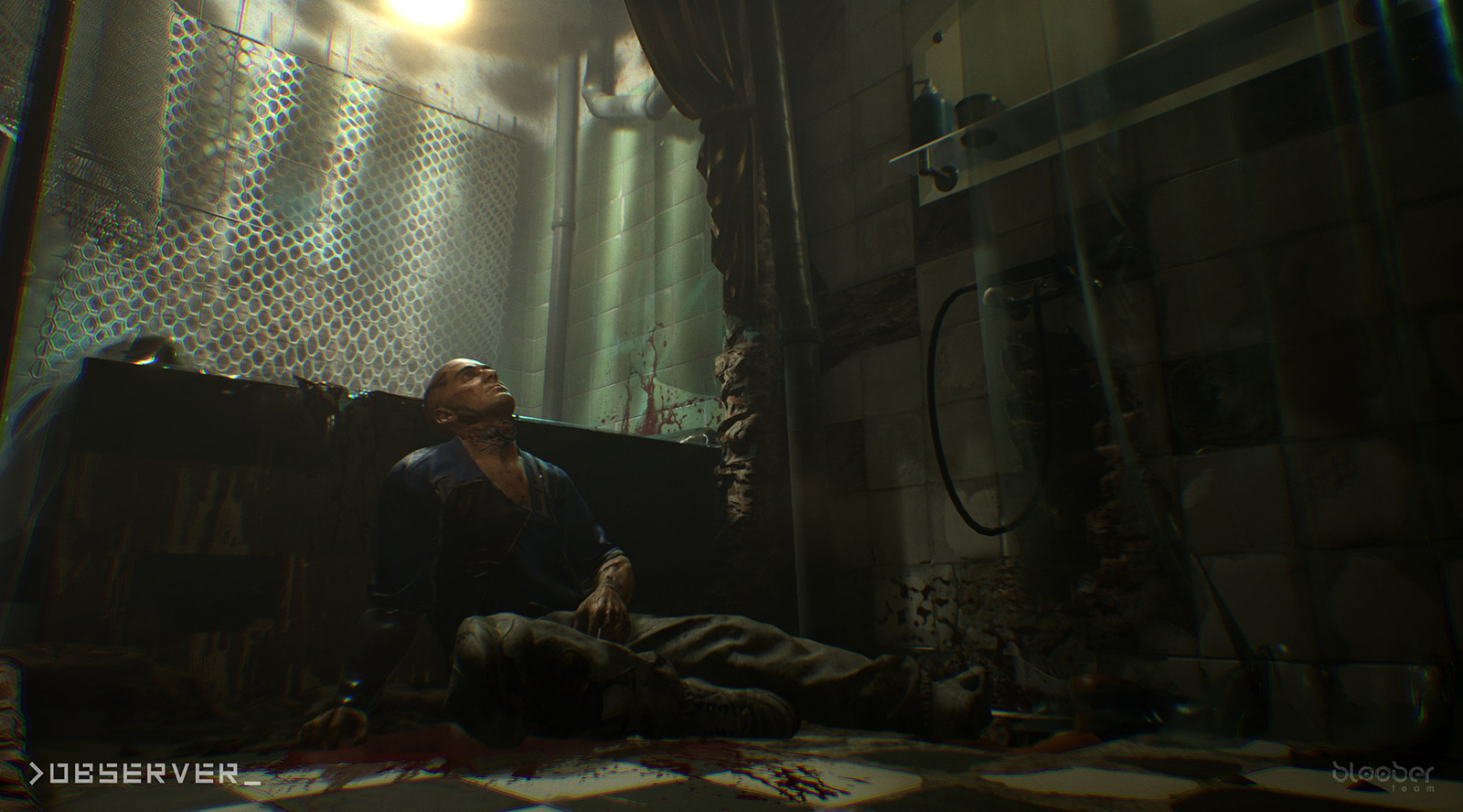
Observer, the new horror game from the creators of Layers of Fear, is all about the ambience.
There are multiple layers of film grain, chromatic aberration and a thick depth of field that makes exploration a little tricky, and causes all sorts of headaches for fans looking for a super-clear image on their fancy PCs. Then there’s the lack of FOV support, unskippable intros, and a capped FPS. All super-annoying for the hardcore.
If you’re looking to take amazing screenshots or just want a fresher, cleaner, less scattered image as you play Observer, he’s how to remove chromatic aberration and depth of field effects, uncap FPS, and more PC fixes.
PC Fixes Guide
[IMPORTANT: These PC fixes may require altering installation files. Always make back-ups to avoid causing unforeseen issues with your game. If issues persist, use your Steam Library to re-download all installation files.]
Browse to the WindowsNoEditor installation file for Observer, and open the config file. From this file, you can make lots of tweaks, including uncapping the FPS limit, changing FOV, or removing blurry effects.
C:\Users\[Username]\AppData\Local\TheObserver\Saved\Config\WindowsNoEditor
Save your file, then right-click and set the file to Read-Only. Otherwise, Steam will overwrite the file.
[NOTE: Set Video Quality To High / Custom.]
How To Remove Chromatic Aberration & Depth of Field:
Open the
[PostProcessQuality@3]
r.SceneColorFringeQuality=0
r.SceneColorFringe.Max=0
r.DepthOfFieldQuality=0
How To Remove the FPS Cap:
Open the GameUserSettings.ini config file.
- Find “FrameRateLimit=”
- Change to “FrameRateLimit=500.000000”
How To Increase FOV:
Open the Engine.ini config file.
Add the line:
[/script/engine.localplayer]
Change the line to:
AspectRatioAxisConstraint=75
The engine won’t recognize FOV higher than 75, unfortunately. There is a limit.
How to Skip the Intro:
To skip the intro files, go to:
C:Program Files (X86)\Steam\steamapps\common\Observer\TheObserver\Content\Movies
In this folder, change all the file names of “Loadingscreen” and “Loadingloop” movies. This will force Observer to skip the opening intro videos.
Need more PC fixes? Let us know in the comments and we’ll try to help.