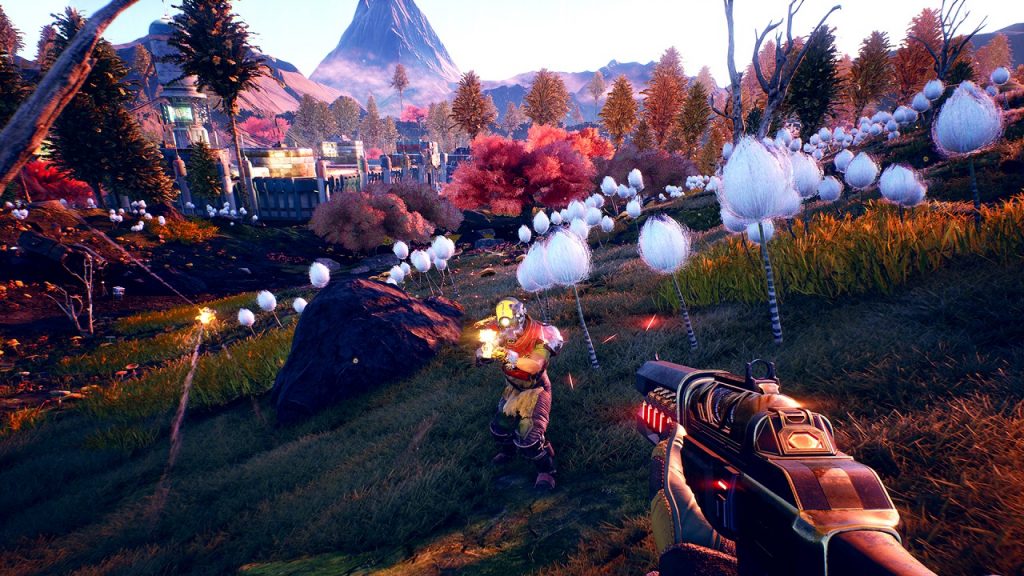
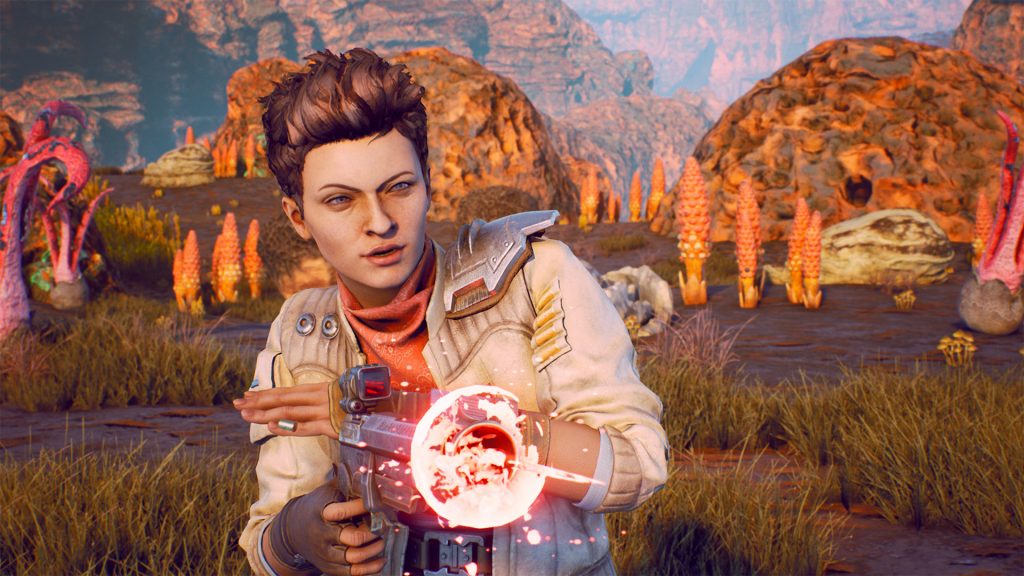
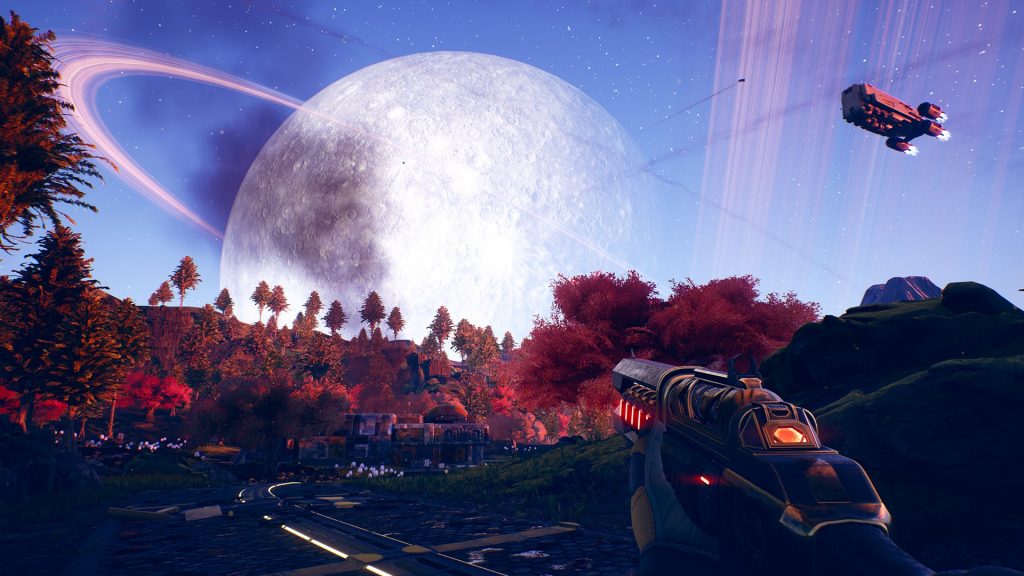
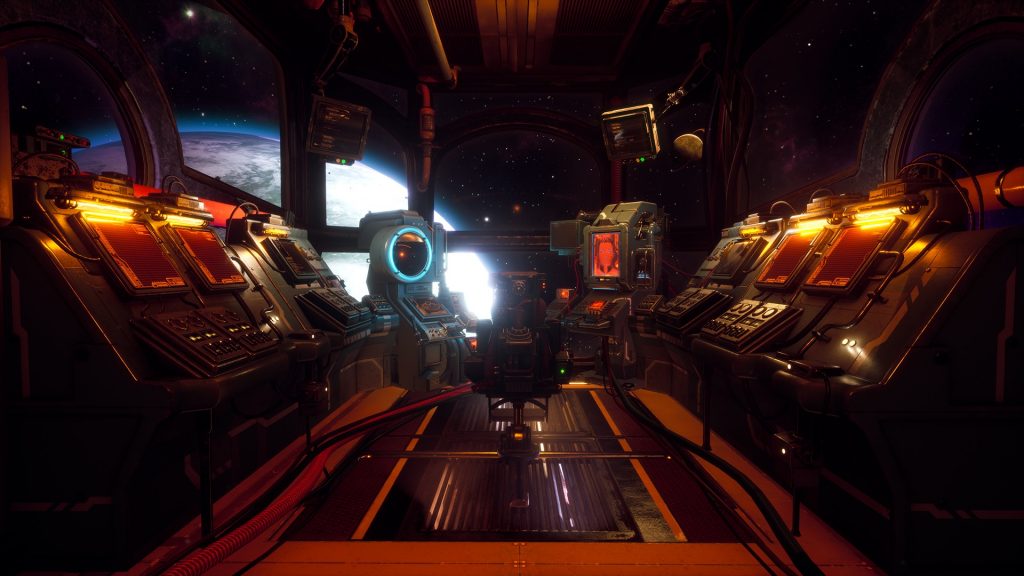
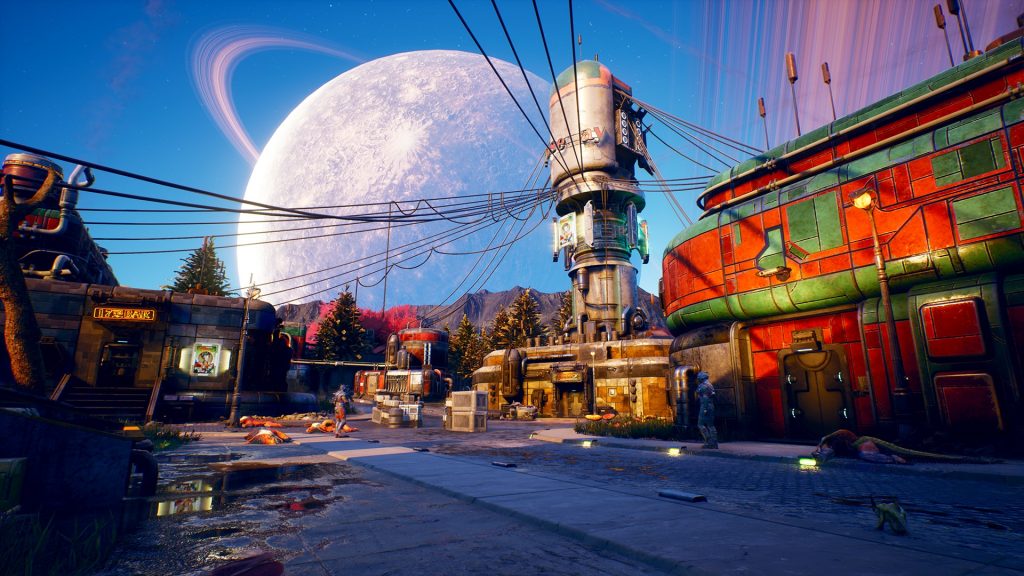
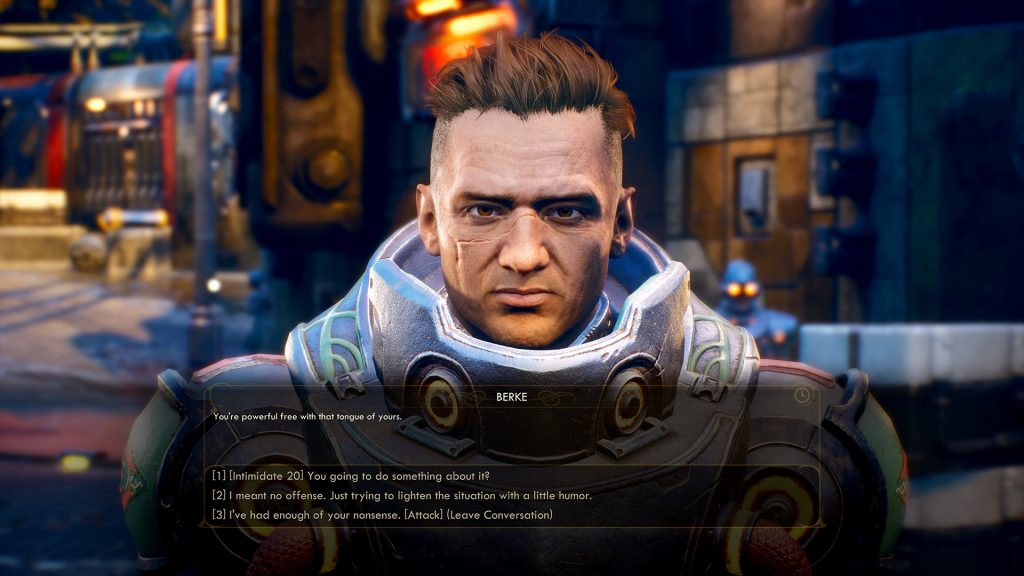
The Outer Worlds is a beautiful new open-world RPG from Obsidian — a team that’s known for releasing a few buggy games. Bugs have descended on The Outer Worlds, and some players are struggling with constant crashes or other issues while trying to enjoy their adventures on alien planets.
Some of the most common issues are related to lacking graphical settings, weird FPS stuttering, and the heavy use of Depth-of-Field. The worst problem are the crashes — crashes on start-up, in character creation, or just after every five minutes of gameplay. That’s the worst, but the community have found some surprising solutions you might want to give a try until a permanent fix has been issued.
More The Outer Worlds guides:
- The Outer Worlds: 20 Tips, Tricks & Secrets I Wish I Knew | Beginner’s Guide
- The Outer Worlds: How To Respec | Skills & Perks Reset Guide
PC Fixes Guide | Stuttering, Crashes & More
These community-sourced fixes might help your PC issues. Check back soon for new updates and additional fixes — many of these issues may be resolved in future patches. Always check for new updates.
How To Fix Constant Crashes
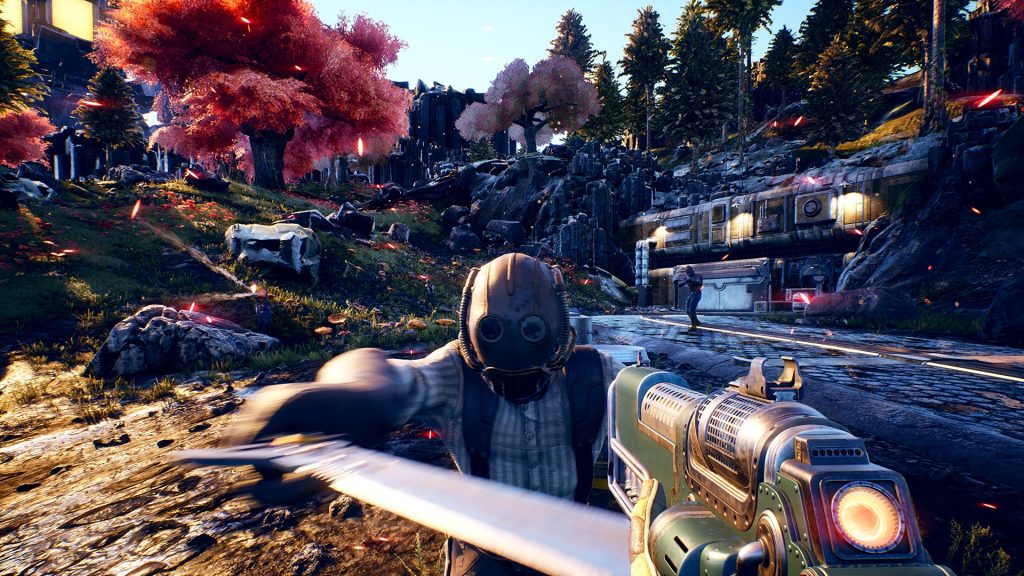
The constant crashing appears to be an issue with the Xbox Gamepass version on PC. This version is causing crashing on start-up, during creation, or just after a few minutes of play. Oddly, there is one fix that is working for players.
- Set the Maximum / Locked FPS to 60 in the Settings
For whatever reason, this is stopping constant crashes for some users.
How To Fix Low FPS | FPS Stuttering
There are many ways to fix low FPS or Stuttering, but here are a few fixes you can try before lowering your graphics settings.
- Turn on Vsync
- Uncap FPS / Set FPS to 60 Locked
- Turn Shadows to Low
How To Fix Blurry Graphics – Simple Solution
There are many effects like Chromatic Aberration that cause the game to look very blurry when graphics are set to ‘High‘ — to tone down CA, select ‘Medium’ or ‘Low’ settings. Currently, there is no option to lower effect settings individually.
For more advanced solutions, check how to edit .ini files below.
Advanced Tweaks – .ini File Editing | Chromatic Abberation, DOF, TAA, Mouse Acceleration
To fix issues with TAA, CA, DOF, or mouse acceleration, you’ll need to add lines to Input.ini in the installation files. Depending on your platform, you’ll find the installation files in one of the two locations below.
- Go To – Windows Store Installation Folder:
- %LOCALAPPDATA%\Packages\PrivateDivision.TheOuterWorldsWindows10_hv3d7yfbgr2rp\
- LocalCache\Local\Indiana\Saved\Config\WindowsNoEditor
- Go To – Epic Store Installation Folder:
- AppData\Local\Indiana\Saved\Config\WindowsNoEditor
How To Disable Chromatic Abberation
Open Engine.ini and add the following line / lines, then save.
r.SceneColorFringe.Max=0
How To Disable DOF [Depth of Field]
Open Engine.ini and add the following line / lines, then save.
r.MotionBlur.Max=0
r.MotionBlurQuality=0
r.DefaultFeature.MotionBlur=0
How To Disable Bloom
Open Engine.ini and add the following line / lines, then save.
r.DefaultFeature.Bloom=0
r.BloomQuality=0
How To Disable TAA
Open Engine.ini and add the following line / lines, then save.
r.Tonemapper.GrainQuantization=0
r.Tonemapper.Quality=0
How To Fix Mouse Acceleration
Find the Input.ini file and open with Notepad. Add the following lines and save.
[Engine.PlayerInput]
bEnableMouseSmoothing=false
That’s all the PC tweaks and fixes we’ve got so far. Check back later for future updates!