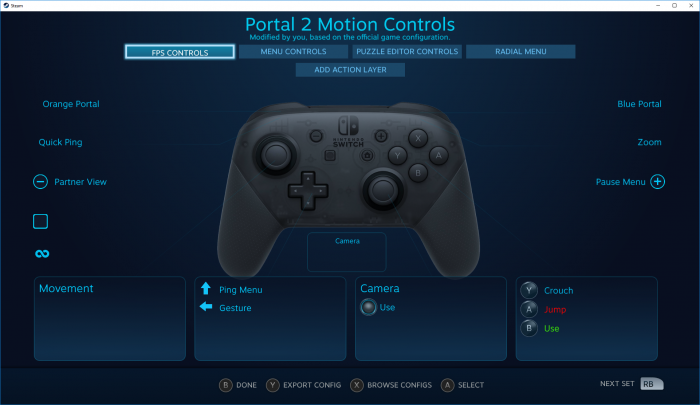
The Pro Controller isn’t just for the Nintendo Switch anymore — now you can use it on Steam. If you’re part of the Steam Beta Client, you’ll be able to hook-up your Switch Pro Controller and use it just like any other quality controller — it works just like an Xbox 360 / One Controller, but there are some fiddly downsides to the whole operation.
First of all, you’ll need to opt-in to the Steam Beta Client to gain access to this feature, it isn’t available for everyone just yet. Before getting into how to use your Pro Controller, let’s talk about how to even opt-in to the Steam Beta Client and check out new features before anyone else.
- How To Opt-In To The Steam Beta Client
- On Steam, click on “Steam” in the upper left corner, then select “Settings” (or “Preferences” on Mac)
- On Big Picture Mode: Select “Settings” -> “System”
- Under the “Account” tab, find the “Beta Participation” setting and click “Change” — it should say that one beta is currently available.
- On the drop down menu, select “Steam Beta Update” and click OK.
- On Big Picture Mode: Check the box to “Participate in Client Beta”
- Restart Steam to download the update and access Beta features.
- On Steam, click on “Steam” in the upper left corner, then select “Settings” (or “Preferences” on Mac)
When you’ve fully updated and have the latest beta client running, you’ll be able to access the Pro Controller feature. There’s still a little bit more you’ll have to do.
- How To Enable Pro Controller Support on Steam [Beta]
- Go to “Settings” under the “Steam” drop down menu, then select “Controller”
- Click “General Controller Settings” to opt-in or opt-out of global controller settings.
- This is the same menu where you can opt-in or opt-out of global controller settings for Xbox / PlayStation controllers.
- Check the “Switch Pro Configuration Support” box.
- When this box is checked, you’ll be able to share, create, and browse Switch Pro Controller configurations shared by other Steam Users.
- [OPTIONAL] You can also check “Use Nintendo Button Layout” to make the controller match Nintendo-style inputs.
- Checking this box will swap the A/B and X/Y buttons on your configuration.
- If you choose a standard controller / Xbox / PS controller configuration, this will quickly and easily swap buttons to fit the Pro Controller.
- Plug-in your Switch Pro controller and register the controller to your account when the prompt appears.
- After registering the controller, you can also use the “Calibrate” option under “Detected Controllers” to improve gyro sensitivity.
After you’ve registered your controller, you’ll have to select a controller config for each individual title. Annoying — but you’ll often find pre-made templates saved and shared by other Steam Users you can use to quickly get up and off the ground. Yes, you can even bind the gyro movement to specific actions.
Source: [1]