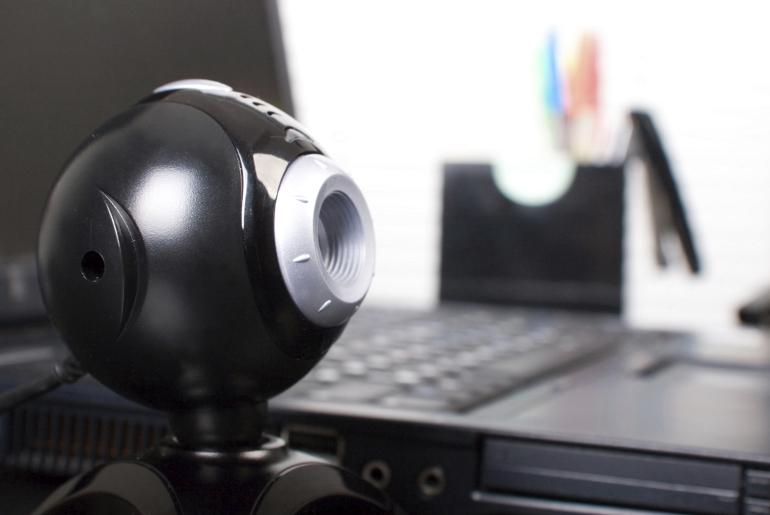
Webcams are a standard part of laptops and desktop computers, they’re everywhere and very easy to use, but that availability also makes them vulnerable. While rare, it is possible for unwanted parties to remotely breach and activate your webcam, turning an innocuous device into someone’s personal spyglass into your private life.
It’s a worry most of us don’t really need in our lives — and if you’re looking for a solution to just shut your webcam off, here’s how to do it. If anything, shutting off a webcam is worth it for peace of mind.
And if you’re looking for a low-tech solution, we recommend a piece of opaque tape over the webcam lens is always good. Just remember — tape won’t stop hackers from accessing an on-board mic. Some webcams also feature a shutter you can close when the webcam isn’t in use.
How to Disable Webcams
If you’re especially worried about security, all webcams feature a bright LED light that indicates when they’re active. If that light is on, and you didn’t turn-on your webcam, that’s a bad sign. It’s time to scan your computer for malware and disable / tape-over your webcam.
Note: Some programs, like Skype, or even operating systems like Windows 10 will access the webcam automatically. You can disable the webcam in individual programs, or in Windows 10 security settings without completely removed webcam functionality from your computer.
Also, if you have an external webcam (not built-in) — you may be able to disconnect it. Remove the USB or other connector from your computer when the webcam is not in-use. Now, let’s get into the meat of the issue and explore how to disable webcams on different operating systems.
- How to Disable Webcams on Windows 10
- Locate the “Device Manager” program in the Control Panel. Use the search bar to find it easily.
- Open Device Manager and find your webcam hardware — it should be located under “Imaging Devices”.
- Right-click the webcam (it should have webcam in the title, ignore the rest) and select “Disable”
- Reboot the computer to make sure the webcam remains disabled. Simply set the webcam hardware to “Enable” to turn it back on.
- How to Disable Webcams on the Chromebook
- From the Status Bar, select “Settings”
- Find the “Privacy” header and select “Content”
- Scroll to the “Camera” header.
- Select “Do not allow sites to access your camera”
- Accept and close to save your settings.
- How to Disable Webcams on an Apple macOS
- Warning — This involves deleting files in macOS. A hacked webcam is extremely unlikely on macOS, but if you still want to remove functionality, here’s how to do it.
- Open to “File Explorer” and find the Quicktime folder.
- Macintosh HD \ System \ Library \ Quicktime
- Find the file “QuickTimeUSBVDCDigitizer.component”
- Delete this file to completely remove webcam functionality.
- Before deleting, copy / paste this file and save the back-up in another folder. That way you can restore by placing the .component file back into the Quicktime folder.
Disabling webcams is a good first step to improving your computer security. We recommend using Malwarebytes to scan for malware — it’s free, and you can download it here.