
Steam might be the biggest digital distribution platform on the PC, but it isn’t the only game in town. There are plenty of games that slip through the cracks. From indie hits like Minecraft to fan-made emulators and more, you can actually add just about anything to your Steam library to helpfully consolidate your library of video games. Doing it is actually pretty easy — and there’s more to it than just adding a game.
You can also customize the title as it appears in your library, or add a custom image for grid view and detail view. That way it’ll look like it belongs in your library, instead of just sitting there in a blank void without a fancy image. Follow the steps below for all the easy steps required to add shortcuts to Steam.
How to Add Any Game (Or Emulator) To Your Local Steam Library
You can add any non-Steam game to your Steam library. This includes any .exe or software installed. There are limitations — adding a non-Steam game is essentially adding a shortcut to your Steam library.
You will still need to use any external launchers required to access your game, and non-Steam games cannot be updated / re-installed through Steam.
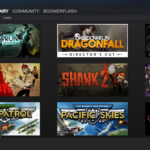
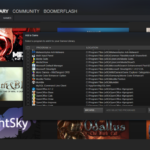
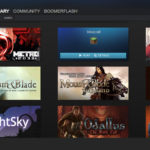
- How to Add Non-Steam Games
- On Steam, select the Library tab. Find the “+ ADD A GAME…” button in the bottom-left corner of the screen.
- Left-click and select “Add A Non-Steam Game…”
- Steam will automatically search and list all programs installed on your computer. Check the game / program you want to add, then select “Add Selected Programs…“
- If a program you’re looking for doesn’t appear, select “Browse” and navigate to the .exe location in Windows.
- To remove any Non-Steam game, right-click the title and select “Delete Shortcut”.
From Grid, you won’t see any artwork for your new game — except for a tiny thumbnail of the .exe — don’t worry, that can be changed. Follow these steps to add an image to Detail / Grid view.
- How to Add Custom Images to Detailed / Grid View
- In Grid View — right-click and select “Set Custom Image…”
- JPG, PNG or TGA images that are 460×215 pixels will work.
- Use Photoshop (or Paint in a pinch!) to resize any image for use.
- After navigating to the image file, select “Set Image”.
- In Detail View — right-click and select “Properties”
- Select “Choose Icon…” — by default, the .exe icon will be used.
- Any 1×1 (Square) JPG, PNG or TGA image file will work.
- In Grid View — right-click and select “Set Custom Image…”
That’s all it takes to add and beautify any entry on your Steam library.