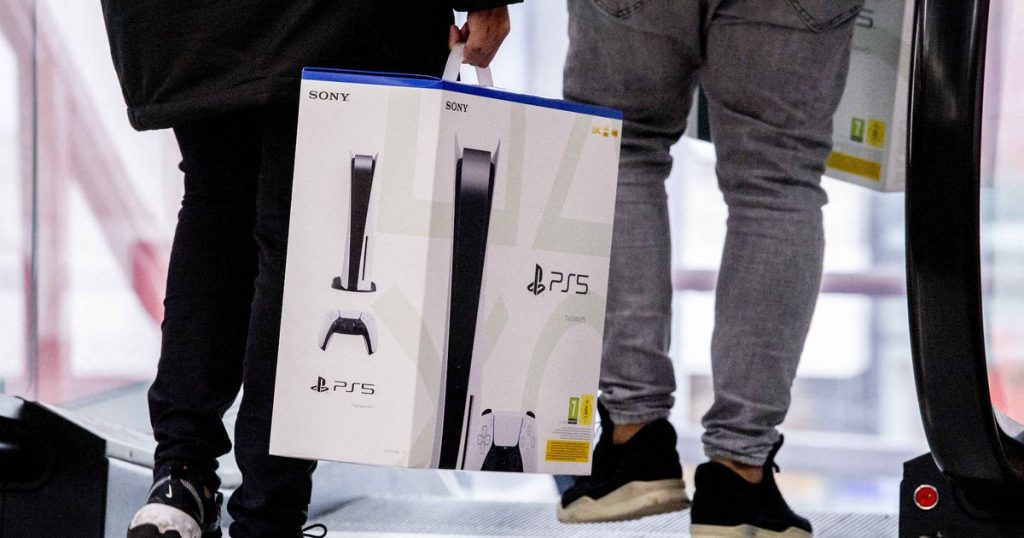
Now that video gaming has officially started moving away from physical media as illustrated by Microsoft and Sony both offering diskless versions of their consoles, sharing video games among friends has gotten a little complicated. While it’s still possible to buy a physical copy of a PS5 or Xbox Series X game and pass it between multiple people to share, more players now than ever before are looking for a digital way of doing that.
Luckily, there is a way to share games with friends digitally that simply requires a little bit of time sifting around through the PS5’s settings menu. If you’re looking to share with friends, follow the steps below and you’ll be able to share titles with ease.
Take note, in order to share games on PS5, you’ll need to be logged into two PSN accounts, your account and the account of the person you want to share with. This means that you need to trust the person you’re sharing with as they’ll have access to all of your data and passwords. Share with caution or make sure to lock your account with a password!
PS5 Game Sharing Explained
As mentioned above, in order to use game sharing on the PS5, you’ll need to be logged into two accounts on your console: your account and the account of the person who you want to share games with. Once you have both accounts on your console, head into the system settings while logged into your account. In the settings, find the “Users and Accounts” tab and select it.
Once inside the “Users” menu, select the “Other” tab and then “Console Sharing and Offline Play.” When selected, you’ll be taken to a screen that tells you the status of your console game-sharing capabilities. You’ll want to make sure that the first line of text on-screen reads “[Console Sharing and Offline Play] is enabled for you on this PS5.” If it says that sharing is disabled, select “Enable.”
Log out of your account and switch to the account you want to share games with. Follow the same steps and make sure that it says console sharing is enabled. Once you’ve made sure that it is, stay in the “Other” tab of the “Users” menu and select “Restore Licenses.” Restore the licenses of all your owned content and then go to the dashboard.
Download any games you want to share between accounts to the PS5 and then switch back to your original account. When viewing the dashboard now, you’ll have full access to the games from the second account without needing to redownload or purchase them. As long as both accounts are on the console, you’ll be able to share as many games as you want though, thanks to how small the PS5’s internal storage drive is, you may need to shift some games around depending on how big their files are.