It seems fair to say that the PS5 is the most advanced console that Sony has ever released. While every iteration of the PlayStation has its own merits, starting in 2023, it seems like Sony is beginning to start solely focusing on supporting its latest hardware and reducing its support for the PS4.
There are plenty of excellent PS5 exclusives to sink your teeth into, however, the PS4’s library of titles is extremely impressive and many players want to continue enjoying them on the latest hardware. Additionally, many of Sony’s first-party games launched on both the PS4 and PS5 and, while many might argue that the PS5 versions of those titles are superior, there are also plenty of reasons why someone might prefer owning the PS4 version.
Unfortunately, the PS5 doesn’t do much to make it easy to find and download PS4 versions of PS5 games. Here’s how to do it.
Downloading PS4 Games with a Disk
The simplest way to download a PS4 game is to have it on a physical disk. Obviously, this method only works for those with a PS5 with a disk drive. To download it, simply insert the disk into your PS5’s disk drive and the game will start downloading. You may get a pop-up that says it needs to update that will pause its download unless you allow the update, but other than that, you’ll be able to get the game onto your internal drive without any issues.
Downloading PS4 Games without a Disk
Using the PlayStation store to download games without a physical disk is your other option when it comes to accessing titles. Getting non-cross-generation PS4 games is pretty simple. All you need to do is search for the game in the store and you’ll be able to purchase and download them. Thanks to the PS5’s backward compatibility, the vast majority of the PS4’s library is available on the platform.
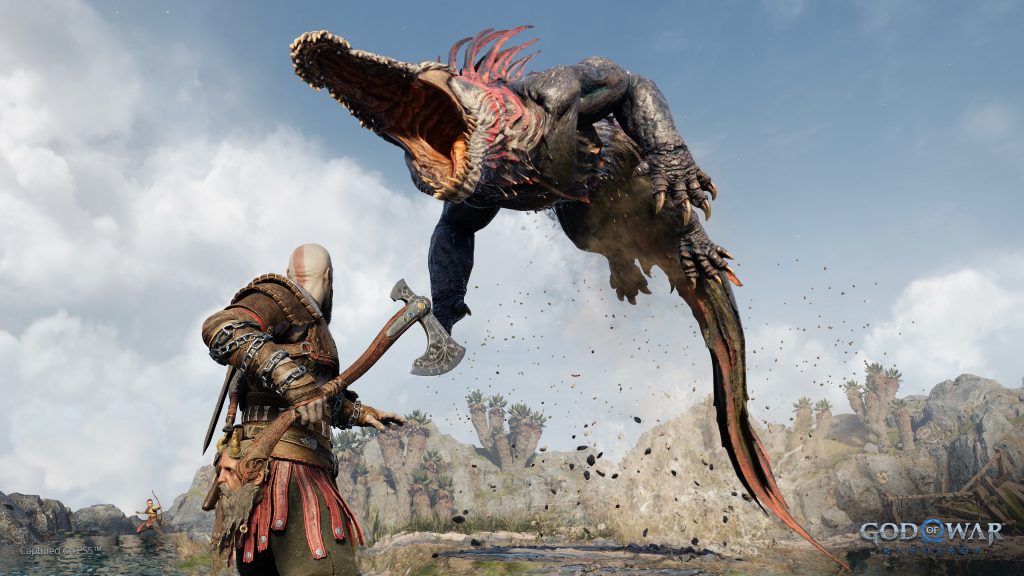
Getting the PS4 version of a PS5 title, on the other hand, is a little bit more complicated. It’s worth pointing out that if you’re looking to save money by purchasing the PS4 version of a PS5 game, you won’t be able to do it through the PlayStation store. For example, there is no listing for the PS4 version of God of War Ragnarok on the store, instead, both the PS4 and PS5 versions are bundled into one listing without the option of only buying the PS4 version.
Downloading PS4 Games From the PlayStation Store
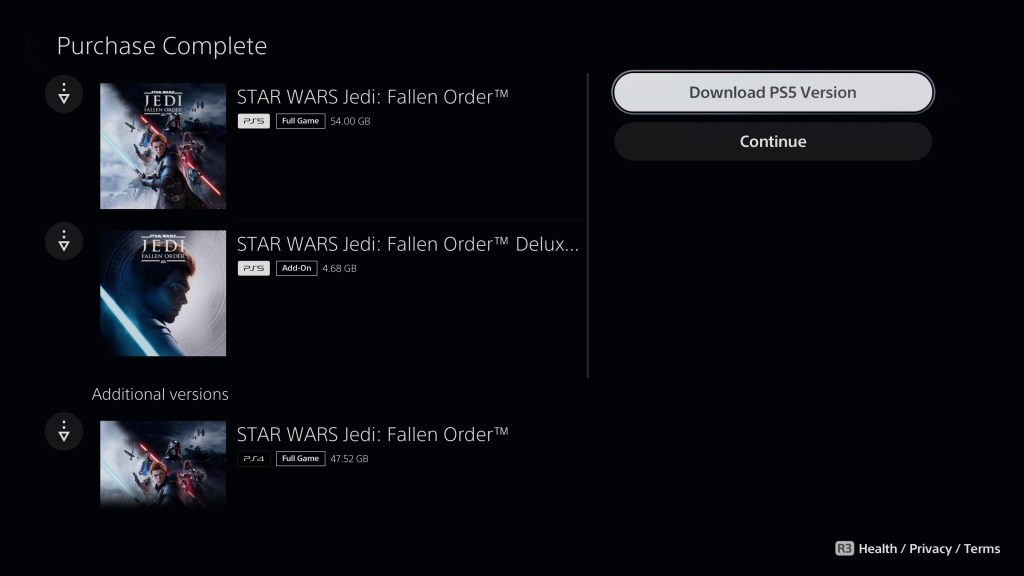
Downloading the PS4 version of a game from the PlayStation Store is pretty simple. Find the game that you’re looking to purchase and download and buy it via its store list page. You’ll know that a game has two versions based on the text in the top left corner which should list text that says both “PS5” and “PS4.” After filling out the proper payment forms, you’ll have purchased your game and be prompted to download it.
You’ll then be given a list of the different versions of the game you just bought. The default version that the store will download is the PS5 edition, so to download the PS4 version simply navigate the menu and select the PS4 listing. Once you select it, the PS4 version will start downloading onto your PS5.
Downloading PS4 Games From Your Library
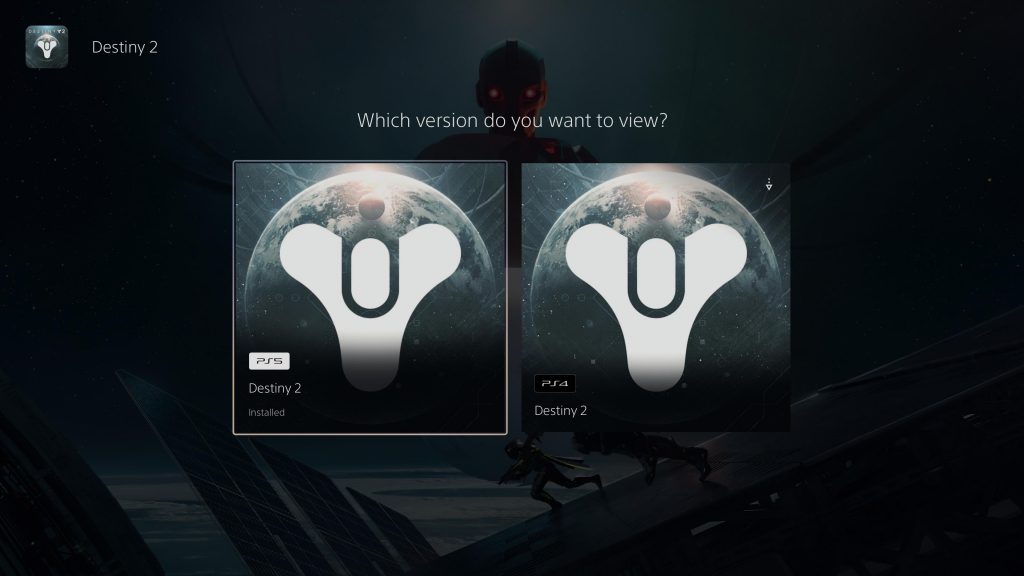
If you already own the PS4 game digitally or you accidentally downloaded the PS5 version of a game when you meant to download the PS4 version, you’ll be able to find it in your game library. To access your library, select the “Game Library” icon on the dashboard and then tab over to “Your Collection.” Here, you’ll find a full list of games that you own digitally.
Search the library for the desired title and select it. If the only version of the game is the PS4 version, then you’ll be able to download it by selecting it and then clicking on “Download” from its listing page. If you have both the PS4 and PS5 versions of a game in your library, select the title and you’ll be prompted to choose which version of the game you want to view. Select the PS4 version and you’ll be taken to its listing page where you can then download it from there.