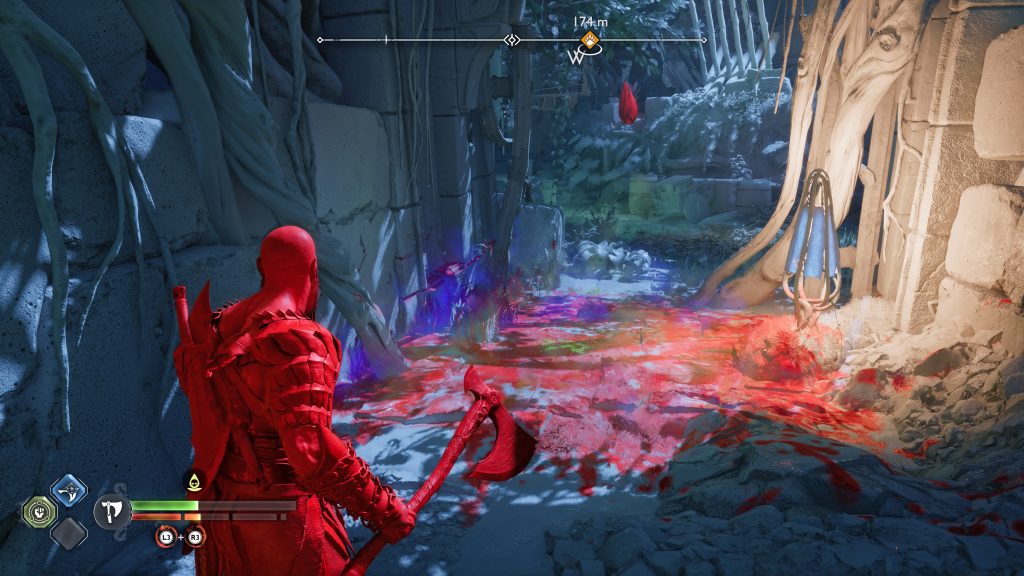
God of War Ragnarok is packed with collectibles and not all of them are easy to spot in the environment. To make your life easier while hunting for 100% completion, you can highlight collectibles through Ragnarok’s extensive Accessibility Settings. This setting is designed for players struggling to spot interactive elements in the extremely detailed environments. Even if you don’t have trouble viewing everything in Ragnarok, you can use the accessibility settings to brightly highlight all collectibles, so you don’t miss a thing. We’ll walk you through the extremely simple process below.
In addition to making collectibles easier to find, God of War Ragnarok has plenty of other settings you can mess around with to improve your experience. These settings can be changed at any time through the Options menu, even in-game or mid-battle, so there’s no reason not to change settings constantly. For the collectibles highlighting, you can enable the feature while hunting for collectibles in open-ended environments, then turn it back off mid-cutscene for a cinematic experience.
How To Highlight Collectibles | Easier Collectible Hunting
To highlight collectibles and make all interactable objects easier to see, go to the Accessibility options. There are settings here allowing you to customize and adjust how objects you can interact with appear in-game. Through these options, we’ll enable a highlighting overlay with customizable colors — no matter what your preference, you’ll be able to make objects that you can use or collect much easier to see.
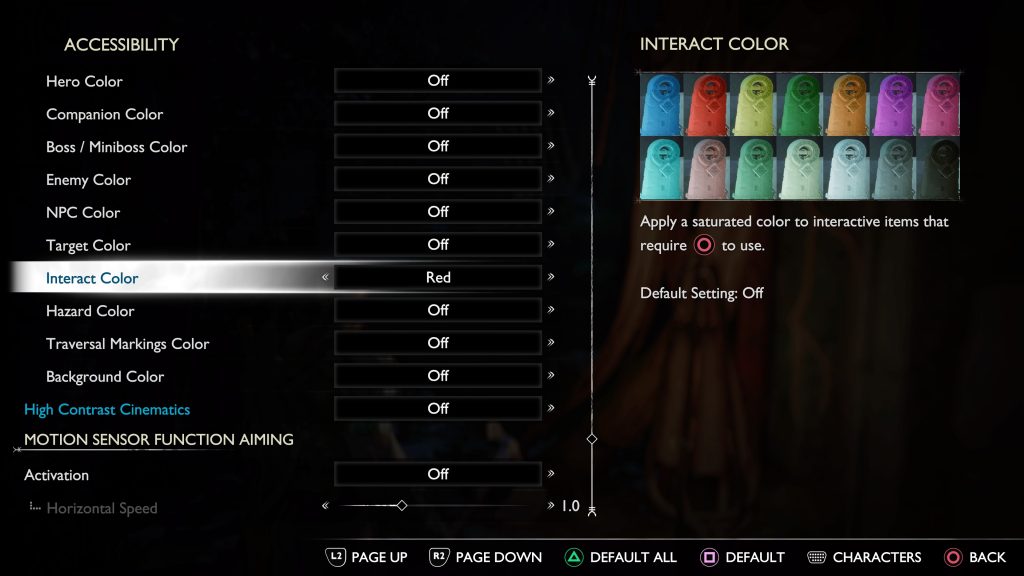
- Press the [Options] button in-game to open the pause menu.
- Go to Settings -> Accessibility -> Scroll down to High Contrast Display.
- Go to Interact & Target – set to color. (Ex. Red)
- Change Background Color to White.
NOTE: If you don’t want High Contrast Display colors to appear in cinematic cutscenes, you can disable that feature. Scroll down to “High Contrast Cinematics” and set this to Off.
You can choose from 14 colors — I prefer to use a bright color like Red to easily highlight objects, making them visible even from a very far distance. In addition to these settings, you can also make solving Nornir Chests easier.
- Under Navigation & Puzzles, you can change Puzzle Timing to increase the amount of time to solve puzzles like Nornir Chests. If you’re struggling with ringing all the bells fast enough, change this setting.
- If you’re lost while solving puzzles, you can also access Puzzle Aim Assist — your aiming reticule will automatically snap to puzzle targets.
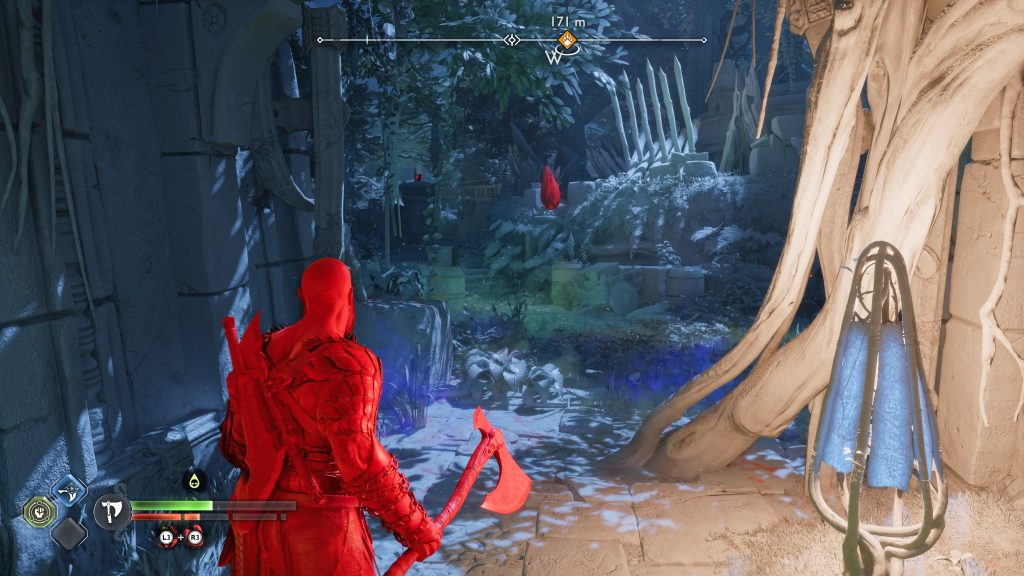
By changing the High Contrast Display for Interact objects (collectibles, puzzle switches, etc) to Red and backgrounds to White, we were able to easily spot any collectibles in the environment from almost any range. If the world is just too detailed for you, these settings make life so much easier.