
• Skip to main content
  • Skip to header right navigation
  • Skip to site footer
Gameranx

Gameranx

Video Game News, Lists & Guides

  • News
  • Features
  • Platforms
    • Xbox Series X
    • PS5
    • Nintendo
  • Videos
  • Upcoming Games
  • Guides

The Wonderful 101: Remastered – How To Fix Inconsistent FPS & Unlock The 60 FPS Cap | PC Tweaks Guide

May 20, 2020 by Kevin Thielenhaus

Like many other ports for games primarily built for consoles, this one has some FPS issues.

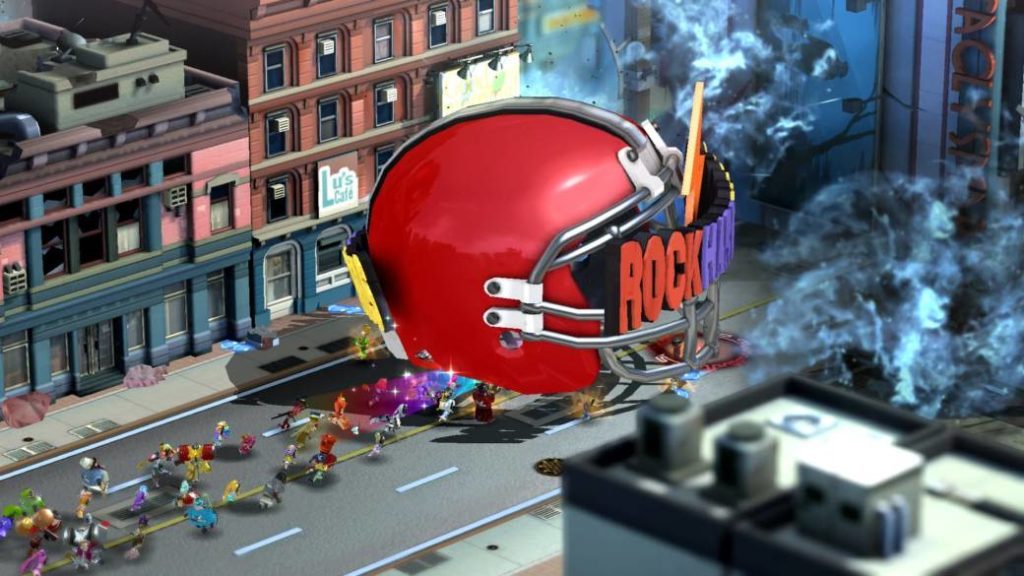
Wonderful 101: Remastered isn’t just available on consoles — you can also grab this new version of the game on Steam. Like many other ports for games primarily built for consoles, this one has some FPS issues. First of all, your FPS is locked to 60 Cap, which isn’t the worst thing in the world, but is bothersome for hardcore PC enthusiasts looking to squeeze as much FPS out of a game as possible.

What’s truly annoying is the inconsistent framerate. According to internet sleuths, the problem seems to be caused by a buggy framerate limiter — your silky-smooth 60 FPS might be dropped on even the most powerful of computers. You’ll lose frames constantly and consistently, and if you’re sensitive to fluctuations, there is a fix available exclusively for PC players. Modders have already cracked the code, and it’s barely been a day!


More Wonderful 101: Remastered guides:

How To Unlock Bayonetta & More Secret Characters | Cheats Guide


The answer to this conundrum is both simple and extremely complex. If you’re looking for a full breakdown of the issue causing FPS drops, check out Silent’s Blog post detailing how he discovered the issue, and how he fixed it. There’s a whole lot to soak in, but the big takeaway is that the FPS Limiter is to blame.

  • To fix dropped frames, download the FPS Fix Mod from Silent’s Blog here.

The mod / fan patch also supports completely disabling the FPS Limiter — but the author doesn’t recommend using this feature. You can disable locked FPS from the included .ini file, but that causes a host of problems in-game. Unless you’re using V-Sync or a different FPS Limiter, this is not a recommended option.

Setup is simple. Just download the .zip folder and drag / drop the files into your Wonderful 101: Remastered installation folder.


This patch only solves a few of the issues in game on PC. Hopefully future patches are incoming.

Share this post:

FacebookTwitterLinkedInPinterest

Recent Videos

10 ICONIC Games That FIXED Open World Games

10 ICONIC Games That FIXED Open World Games

Valheim 1.0 - Before You Buy

Valheim 1.0 - Before You Buy

ROCKSTAR EXPLAINS GTA 6 WEAPON MECHANICS, KOJIMA SONY BREAKUP & MORE

ROCKSTAR EXPLAINS GTA 6 WEAPON MECHANICS, KOJIMA SONY BREAKUP & MORE

Wolverine - Before You Buy

Wolverine - Before You Buy

Zelda: Ocarina of Time Remake - BIGGEST CHANGES

Zelda: Ocarina of Time Remake - BIGGEST CHANGES

10 BRAND NEW WAR Games That Excite Us

10 BRAND NEW WAR Games That Excite Us

This Will Forever Be The Most Realistic Survival Game EVER

This Will Forever Be The Most Realistic Survival Game EVER

GTA 6 vs GTA 5 Gameplay: What's Changed?

GTA 6 vs GTA 5 Gameplay: What's Changed?

10 Upcoming Games That WILL PUNISH YOU

10 Upcoming Games That WILL PUNISH YOU

Category: FeaturesTag: Guides, Nintendo Switch, PC, PS4, The Wonderful 101: Remastered, Xbox One

Sidebar

Recent Posts

  • Rumor: Is Fairgame$ Being Playtested As Project Espresso?
  • Nintendo Holding Customer Appreciation Sale To Share Tariff Refunds
  • StarCraft Returns As An Open World Shooter In 2030
  • Blizzard Announces Diablo V, Coming Spring 2029
  • “Yeah, You’re Going To See Me In There” – Stephen Root Leaks He Will Be In GTA 6

Copyright © 2026 · Gameranx · All Rights Reserved · Powered by Mai Theme