There are three new features you can access with the 6.00 update and the new Online Service on the Nintendo Switch. Two of the features are totally free, and the third requires an Online subscription. We’re going to cover them all, explain how they work, and generally tell you everything you need to know to get the most out of your Nintendo Switch.
The free features are both pretty cool. Most importantly, you can now use Game-Sharing on the Nintendo Switch. You can log in on a friend’s Nintendo Switch and download any digital library games you own onto their system. As long as that friend isn’t currently logged-in, you can hop onto the account and play their games as much as you like. That’s pretty awesome.
Along with Game-Sharing, you’ll also find batch image sharing and automatic cloud save backups. These are all awesome little features. Learn about them in the full guide below.
More Nintendo Switch guides on Gameranx:
- Nintendo Switch: Everything You Need To Know About The New Online Subscription Service
- Nintendo Switch: How To Earn (& Spend) Nintendo Gold Points | Free Online Subscription Guide
- Nintendo Switch: How To Transfer Save Files & Capture Video | Update 4.00 Guide
- Nintendo Switch: How to Take (And Share) Screenshots
- Nintendo Switch: You Can Play NES Golf With This Fun Tribute To Iwata
- Nintendo Switch: How to Add Friends & Send Friend Requests
- Nintendo Switch: How to Access Regional eShops | Japan, US, UK, Etc
How To Use Game-Sharing, Upload Cloud Saves & Share Pic Batches | New Features Guide
Let’s start with the best new features — Game-Sharing! If you have friends with a large digital library on the Nintendo Switch, you can now share those games. This only works for digital games, and you’ll need to login to their physical Nintendo Switch, but once you’re setup you can use multiple friend accounts (and access their game libraries) on a single device.
- How To Use Game-Sharing
- The game-sharing feature technically goes by another name — “Non-Primary Account“
- You can add a Non-Primary Account to your Nintendo Switch accounts list. You’ll need the password to add the account in System Settings.
- Once a Non-Primary Account has been added, you can access the eShop and download any digital game from their user’s library.
- While using a Non-Primary Account, you must be connected to the internet. You can only play games when connected to the internet, and when no-one else is accessing the Non-Primary Account.
- If someone else attempts to use the Non-Primary Account, or if there is an interruption in your internet service, you will not be able to access the software owned by the Non-Primary Account.
Along with Game-Sharing, you can also do some Game-Saving. You can find your saved data backup files several different ways. You can access individual games, or check out an account overview. Below, I’ll explain all the features available when accessing an individual game menu.


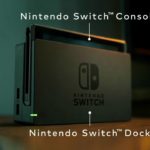


You can also checkout your cloud save files by going to: System Settings ->Data Management -> Save Data Backup
- How To Upload / Download Cloud Saves
- Highlight a game on the main menu, then press [+] to access the game options tab. Here, you’ll be able to upload your save files to the cloud.
- Select “Save Data Cloud Backup” to upload your save.
- Requires an Online subscription. If you cancel your Online subscription, all current save files will be lost.
- From “Save Data Cloud Backup” you can select several different options.
- Automatic Save-Data Backup – Toggle On / Off
- Back Up Save Data – Manual Backup
- Download Save Data – Manually download Save Data onto a different Nintendo Switch console using the same account.
- Delete Backup Save Data – Manually delete the current Save Data backup.
Not only can you easily manage your cloud backup files, you can also share more screenshots online.
- How To Share Batches Of Screenshots
- After the 6.00 update, you can now share batches of screenshots you’ve taken in your Album.
- Select an image, then select “Post Batch” — you can post multiple images at once.
- After you select “Edit and Post” you can select “Post Batch”, which will open a gallery of images from the same game / app.
- Images must be from the same game / app, too. If you want to post images from multiple games, you’ll have to select each game’s images individually and post a batch.
- After the 6.00 update, you can now share batches of screenshots you’ve taken in your Album.