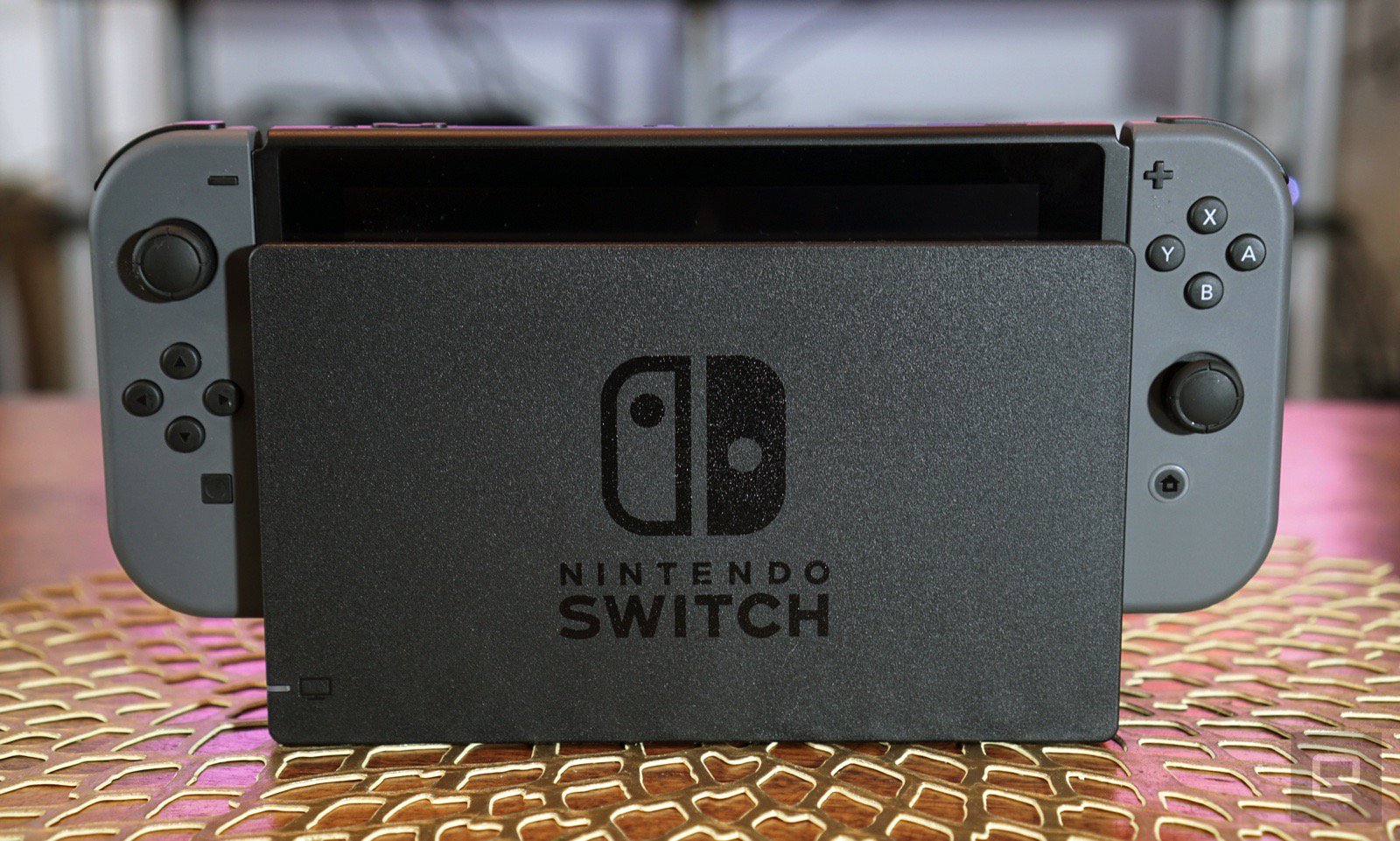
The new 4.00 update for the Nintendo Switch includes two much-requested features for the portable system — video capture and save file transfers. Both are great inclusions, but there are some drawbacks you’ll need to understand before taking advantage of what these new features offer. Below, I’ll break down how to capture video on the Nintendo Switch, and how to transfer save files; including how both features work.
The Nintendo Switch has been getting a few cool updates recently, including a “On Sale” tab for the Switch store. The 4.00 Update also includes a bunch of free avatar icons you can use for your various profiles to make them all distinct. Not exactly an amazing feature, but free Breath of the Wild and Mario Odyssey avatars are appreciated.
4.00 Update | New Features Guide
The 4.00 Update includes two major features: Video Capture and Save File Transfer. Here’s how they work.
How To: Video Capture
The Video Capture feature utilizes the dedicated screenshot button on the Left Joy-Con. To take video, hold down the screenshot button — you can take up to 30 seconds of footage on a select number of games that will be updated at a later date. For now, you can only capture video with these supported games:
- Mario Kart 8 Deluxe
- ARMS
- Splatoon 2
- Legend of Zelda: Breath of the Wild
The video capture file is saved in the album. If you have an SD Card, all videos and screenshots will automatically be saved into an album on your SD Card — simply remove the card and plug into a computer to copy the file and edit for sharing.
How To: Transfer Save Data / User Profiles
The transfer function allows you to move Save Data and your User Profile (including eShop purchases) to another Nintendo Switch console. User Profiles are transferred individually, so you can select to move specific profiles from your source console onto another.
NOTE: This isn’t a back-up feature. Transferring user profiles is a one-way trip — the User Profile and Save Data that is transferred will no longer be on the source console.
- Before You Transfer
- The source console and a second Switch console are required to complete the transfer. Both consoles are required at the same time.
- Both consoles must be updated to 4.00, connected to the internet. The source console must be linked to the Nintendo Account.
- The console you are about to transfer to must have a free profile space, and enough free space to store the data.
With that in mind, here’s the exact process for transferring your Use Profile from one console to another.
- How to Transfer:
- On the Source (Original) Console: Go to the HOME Menu -> System Settings -> Users Tab
- Select “Transfer Your User and Save Data”
- Select Next -> Next -> Source Console -> Continue
- On the Target (Second) Console: Go to the HOME Menu -> System Settings -> Users Tab
- Select “Transfer Your User and Save Data”
- Select Next -> Next -> Target Console -> Sign In
- Sign In to the Nintendo Account linked to your Source (Original) Console and User Profile.
- After Signing In -> Select Next
- Return to the Source (Original) Console: Wait for the Target Console to be found. When it is, select “Transfer.”
- Wait for the Transfer Process to complete.
- Select “End” to complete the process when the button appears.
- On the Source (Original) Console: Go to the HOME Menu -> System Settings -> Users Tab
And that’s it! Unfortunately, that means you can’t back-up User Profile / Save Data with this function, and you can use it to restore or reclaim your profile if your Nintendo Switch is broken or stolen. If that happens, you’ll have to contact Nintendo Support for further assistance.