
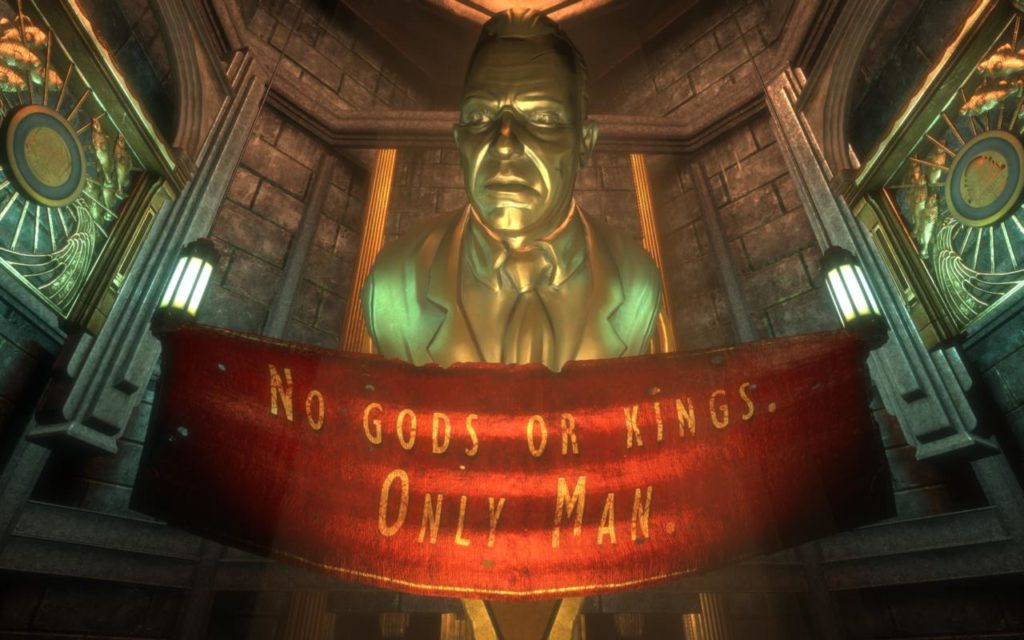
BioShock: The Collection is as buggy as the original game has ever been. Although some CPU-related issues, such as the pipe game that broke if you ran the game on a modern computer, have been fixed—most of the bugs that plagued the original game remain with the remastered version, which appears to only have gotten a visual upgrade.
Like the original game, the remastered version suffers from extremely limited graphical options and mouse acceleration can’t be turned off. The game client will still crash or behave unpredictably if you attempt to alt-tab out while in full screen mode, and ultrawide displays are not properly supported, resulting in a stretched view.
Thankfully, you don’t have to depend on the in-game options to fix these issues. To disable mouse smoothing, simply use the following guide:
- Go to%APPDATA%\Roaming\BioshockHD\Bioshock\
- Open “Bioshock.ini” with editor -> set “ReduceMouseLag” and “DoubleBufferMouseLag” both to “=False”
- Save and close
- Open “user.ini” -> add the line “MouseAccelThreshold=0” at the very end. (should be under “MouseSmoothingMode=0” witch is 0 already.)
You can also modify the same file (user.ini) to change your video settings. Your mileage may vary.
[Engine.RenderConfig]
HDRSceneExpBias=-3
MaxSkeletalProjectorsPerActor=6
OffsetSkeletalProjectorRearFrustrumPlane=10.000000
UseSoftwareAntiAliasing=True
EdgeDetectCutoff=0.002000
EdgeBlurSize=0.500000
StreamingVisibleWeight=10.000000
StreamingDiffuseWeight=4.000000
StreamingBSPWeight=1.000000
StreamingEmissiveWeight=7.000000
StreamingLightmapWeight=5.000000
StreamingNormalmapWeight=1.000000
StreamingDynamicLoadedWeight=10.000000
StreamingDistanceScale=1000.000000
HighDetailShaders=True
Shadows=True
RealTimeReflection=True
PostProcessing=True
HardwareOcclusion=True
UseRippleSystem=True
UseHighDetailSoftParticles=False
UseSpecCubeMap=True
UseDistortion=True
HorizontalFOVLock=True;
HorizontalFOVLockPS4=True;
HorizontalFOVLockXB1=True;
LevelOfAnisotropy=4
RenderDetail=3
UseMultithreadedRendering=0
UseVSync=1
UseFxaa=1
ForceGlobalLighting=False
CascadingWaterSimulationVelocity=10.000000
UseHighDetailPostProcEffects=True
UseMultithreading=True
DisableExtraAntiPortalClip=True
TextureDetail=High
FluidSurfaceDetail=High
DynamicShadowDetail=Medium
Finally, the game defaults to 2.0 stereo sudio despite having full support for surround sound. To enable surround, 5.1 or 7.1, do the following:
- Go to%APPDATA%\Roaming\BioshockHD\Bioshock\
- Make a backup copy ofini.
- Locate the valueSpeakerMode=.
- For Mono change it toSpeakerMode=SM_Mono
- For Stereo change it toSpeakerMode=SM_Stereo
- For Quad change it toSpeakerMode=SM_Quad
- For Surround change it toSpeakerMode=SM_Surround
- For 5.1 change it toSpeakerMode=SM_5_1
- For 7.1 change it toSpeakerMode=SM_7_1
- For Pro Logic change it toSpeakerMode=SM_ProLogic
- This requires your output device to be set to 48kHz or most audio will not play. To check or change it, right-click the speaker icon in your taskbar.
- Select playback devices.
- Double-click the entry that says “Default device”.
- Change to the “Advanced” tab.
- Select a 48000Hz format.