
Table of Contents[Hide][Show]
Roblox may not be known for being the most peaceful of platforms, with a number of games on the site going for a more chaotic and colorful feel instead, leading most people to regard it as “brainrot”. But look further in and you can find many games that you can relax and sink many hours into by yourself. Unfortunately there are some less than pleasant players out there who will “e-beg” while you are just trying to game. On the flip side, fortunately, you are able to do something about it. And no, we don’t mean bully them. You can disable the chat! Here’s how.
How do I remove chat?
The method I will be showing is by using a computer to do this process.
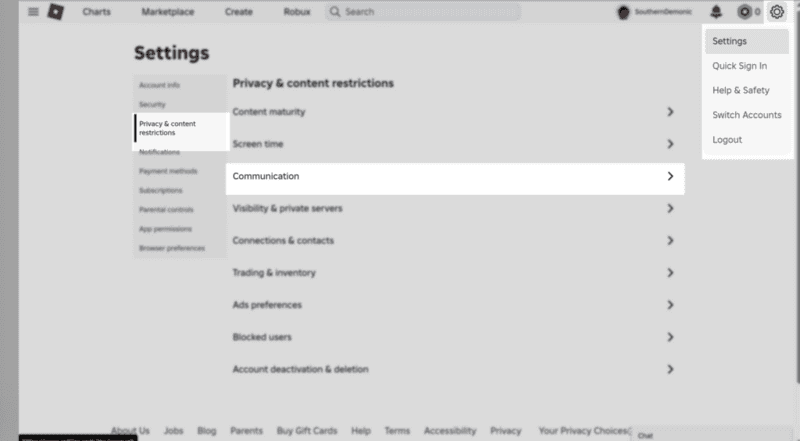
- Log into your account on the Roblox Website
- Click on the gear icon in the top right corner and then “settings”
- Head to Privacy & Content Restrictions
- Click on Communications
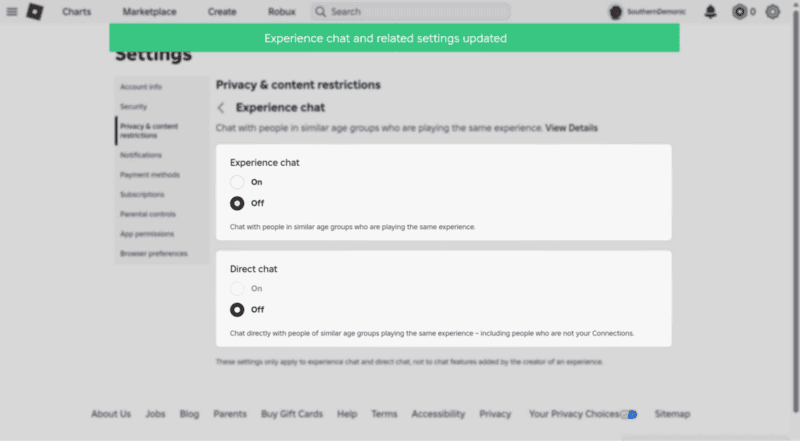
- Select Experience Chat
- Once there, press the toggle underneath Experience Chat to disable seeing conversations happening inside the server.
- You can also toggle underneath Direct Chat to disable players from directly messaging you, or “whispering” to you in a server.
- Once clicked, a popup will appear in a green text box that your settings have been updated.
If you have Roblox open in a different tab or on your console, be sure to close it and reopen to give the settings a chance to refresh and update.
How to Remove Chat on the App
Removing the chat using the app on your phone is not much different, but we will show how to navigate to these same settings below.
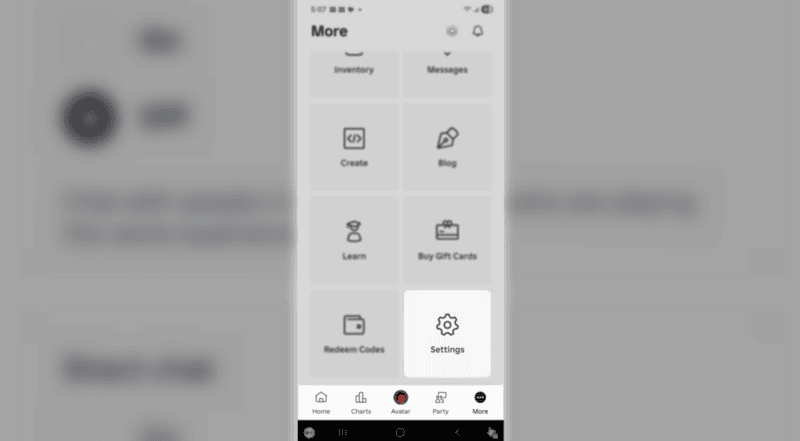
- Open the Roblox app on your phone
- Look to the bottom of the screen for a task bar, showing Home, Charts, Avatar, Party, and More.
- Click More
- Scroll down and click Settings with the gear symbol above it.
- Head to Privacy & Content Restrictions
- Click on Communications
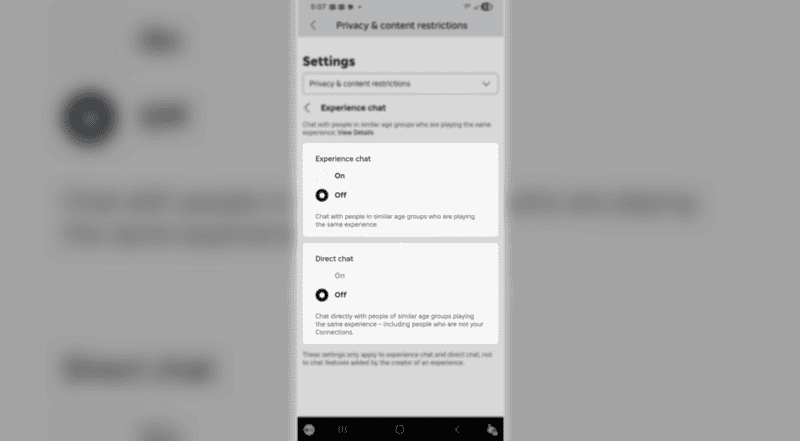
- Select Experience Chat
- Once there, press the toggle underneath Experience Chat to disable seeing conversations happening inside the server.
- You can also toggle underneath Direct Chat to disable players from directly messaging you, or “whispering” to you in a server.
- Once clicked, a popup will appear in a green text box that your settings have been updated.
As stated with the computer version, close and reopen Roblox to give the platform a chance to refresh and update your new chat settings. We wish you a peaceful gaming experience, with less players begging for things that you have or just being a general pest!


