
Mobile gaming has really taken off in the last few years as smartphones have gotten more and more powerful to support and run better games. When the mobile gaming scene first started, most games were entirely touch control-based, but as they’ve gotten more complicated and moved into other gaming genres, touched based controls just simply weren’t enough.
Many more complicated games still allow the player to use touch controls such as mobile battle royals like PlayerUnknown’s BattleGrounds or Final Fantasy 7 The First Soldier, but onscreen buttons clutter up vital space and lack the physical feedback that’s so appealing about using a mobile controller.
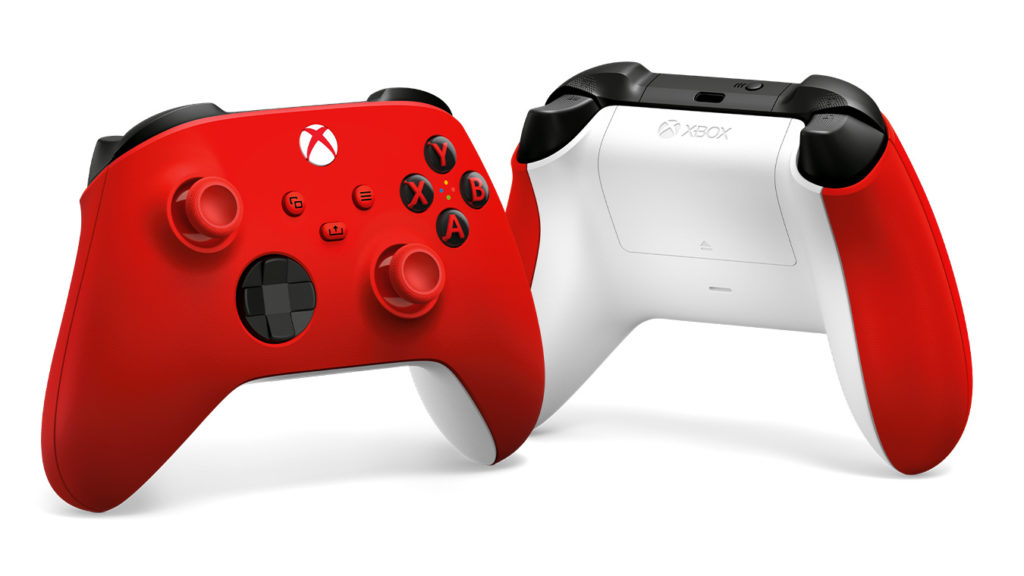
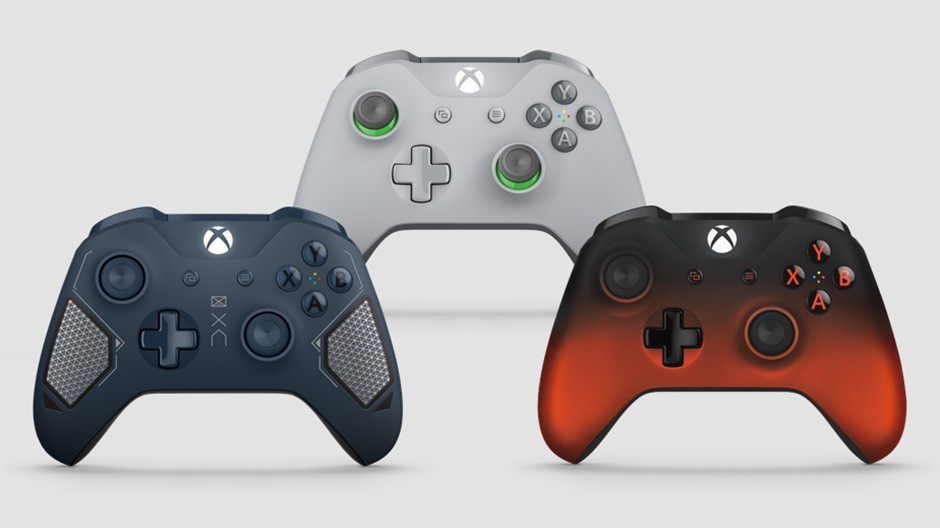
Purchasing a Backbone or Riot mobile controller, however, doesn’t have to be the solution for those looking to game on the go. If you have an Xbox controller, the Series X/S design or the Xbox One design, you can easily pair it to any iPhone.
Pairing Xbox Controllers to iPhones
Pairing an Xbox controller to an iPhone follows essentially the same steps as pairing a controller to a console, but with a few modifications.
- Turn the controller on.
NOTE: iPhones can connect to any official wireless Xbox controller released since the launch of the Xbox One. - Push the pair button located on the top of the controller next to the left bumper and hold it down until the Xbox button starts flashing.
- Open your iPhone’s Settings app and go into the Bluetooth tab.
NOTE: Make sure Bluetooth is turned on otherwise you won’t be able to connect. - At the bottom of the screen, you should see the name of your Xbox wireless controller under the “Other Devices” section.
- Tap the controller’s name in the Bluetooth settings and the controller’s Xbox button will stop flashing and it will be connected.
NOTE: Some games might not recognize that you have a controller connected until prompted in the settings. If the controller is connected but the game isn’t responding to its inputs, make sure to check the game’s settings and that controller support is enabled.