The LEGO games series has gone through plenty of iterations. After all, the franchise is incredibly popular and its adaptations of different media giants from The Avengers to Lord of the Rings to Indiana Jones to Star Wars have been releasing pretty consistently since 2005 with the first LEGO Star Wars game. It’s no wonder that, as the games grew more and more popular, their scope and budgets would grow accordingly.
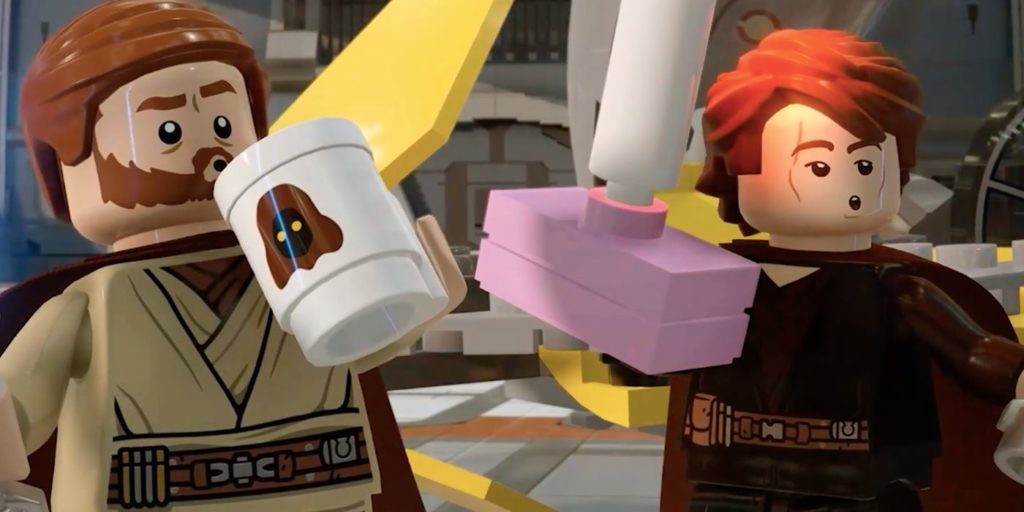
Back when the franchise debuted, the games were completely devoid of voice acting, instead, opting to retell each movie franchise through unintelligible mumbling and babbling. This element certainly added to the comedy of the games, however, it left a lot to be desired for those looking for a more faithful adaptation of the source material.
Pretty quickly as the franchise took off, LEGO games became fully voiced and ditched the comedic mumbling of games past. Luckily for those feeling nostalgic for the original games’ mumbling, LEGO Star Wars: The Skywalker Saga has a setting that replaces all of the voice over with the classic mumble mouth.
More Star Wars: The Skywalker Sage guides:
Free Character & Vehicle Extra Codes | How To Summon An Army Of Mandalorians
Turning on Mumble Mode in LEGO Star Wars
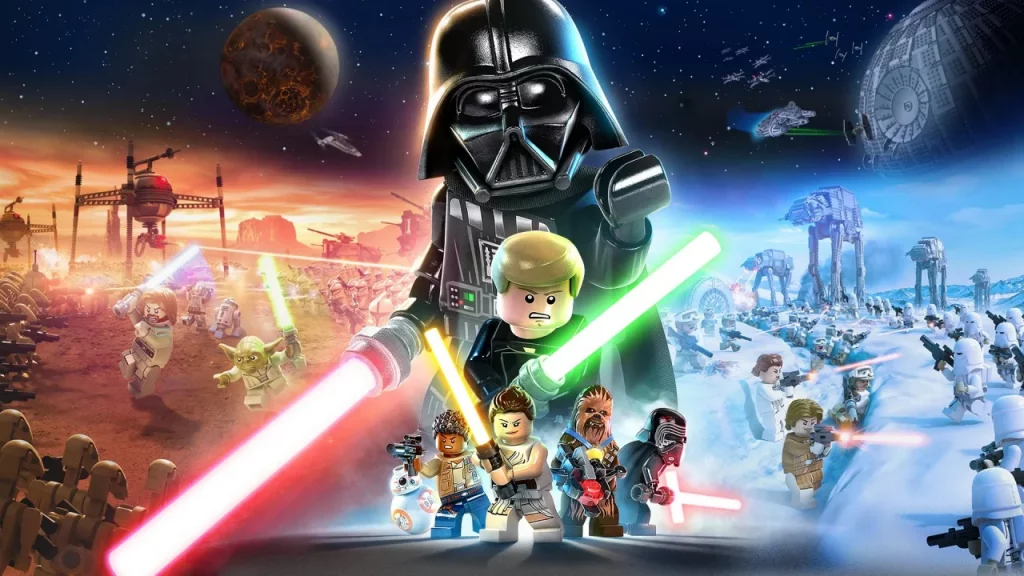
There are a lot of settings that players can tweak in LEGO Star Wars: The Skywalker Saga that allow them to tailor the experience perfectly for themselves. While it might seem intuitive to look through the options right from the start menu in search of the toggle, players won’t find the Mumble Mode setting in any accessibility settings or other such menus.
Instead, they’ll need to start the game and access the setting from the pause menu. To do so, load into a level and hit the Select button on Xbox controllers (the left-center button) or the touchpad on PlayStation. This will bring up the Galaxy Map which, while useful in-game, isn’t where the setting is located.
Tab over to the “Extras” menu marked with a question mark by hitting the right bumper. Scroll down until finding “Mumble Mode” and from there you can select the tab with the A button on Xbox and the X button on PlayStation to turn it on.
Mumble mode can be activated or turned off at any point when the menu is accessible.